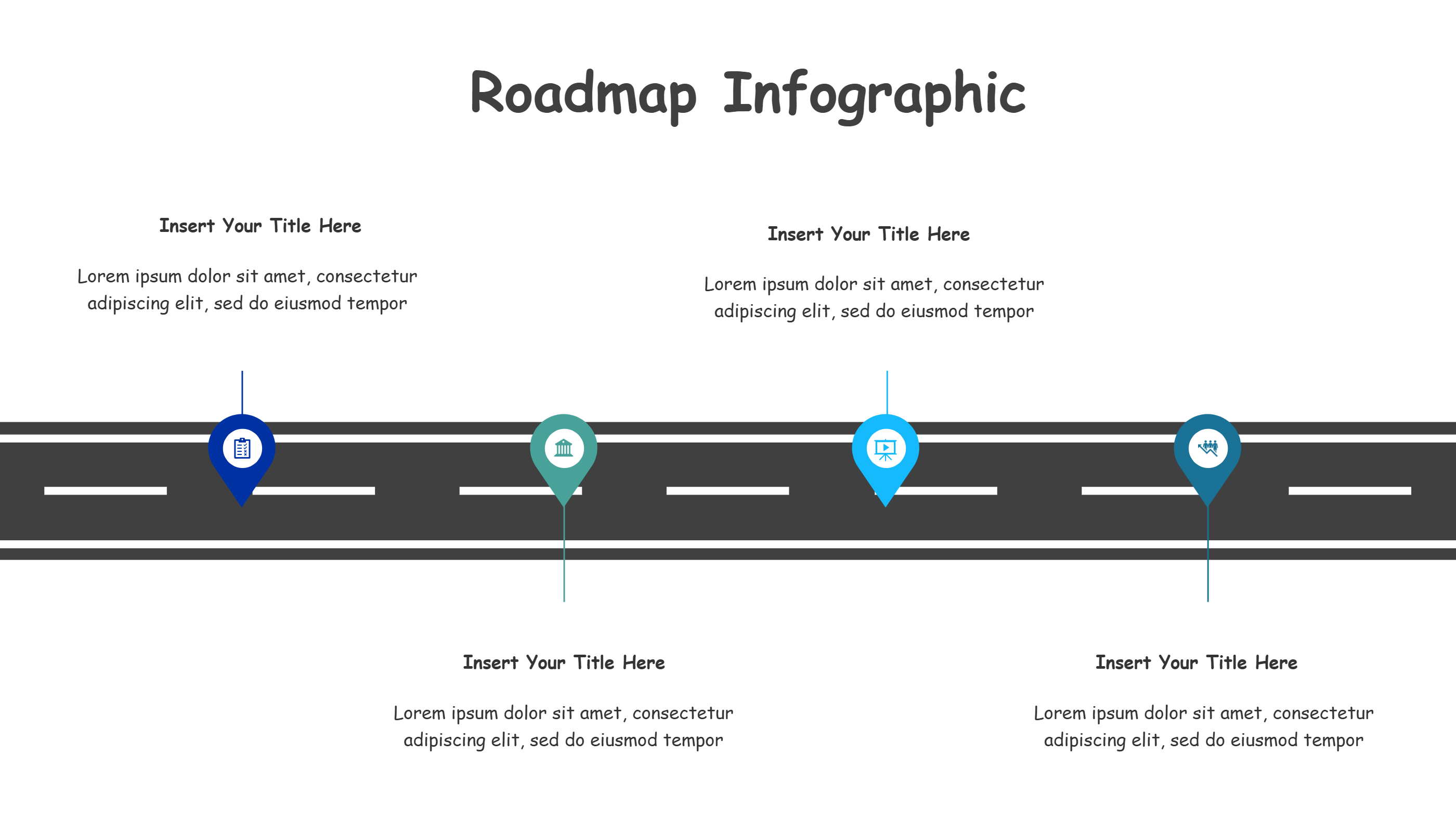
Winding Four-Stop Journey
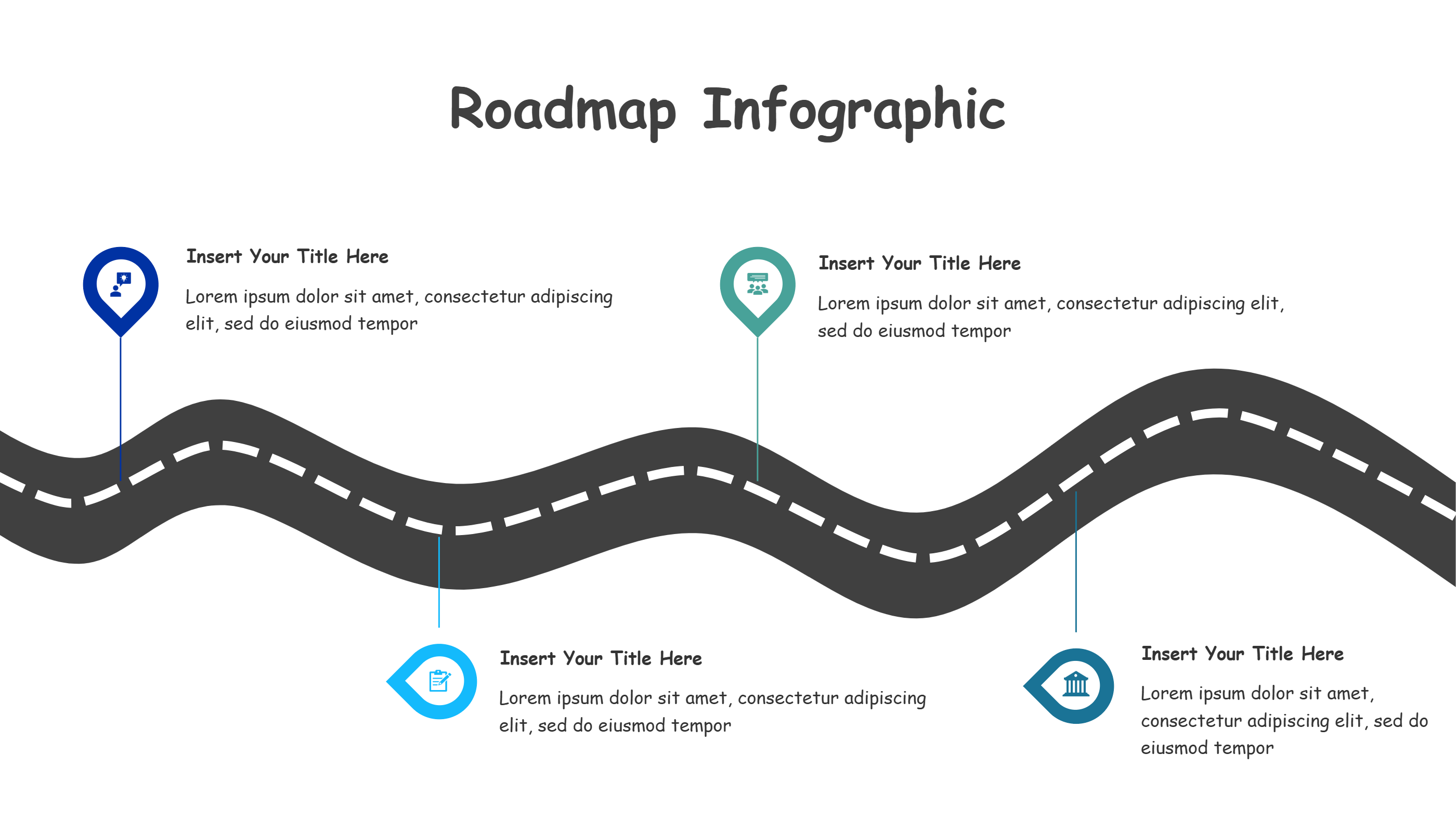
What is Winding Four Stop Journey Infographic
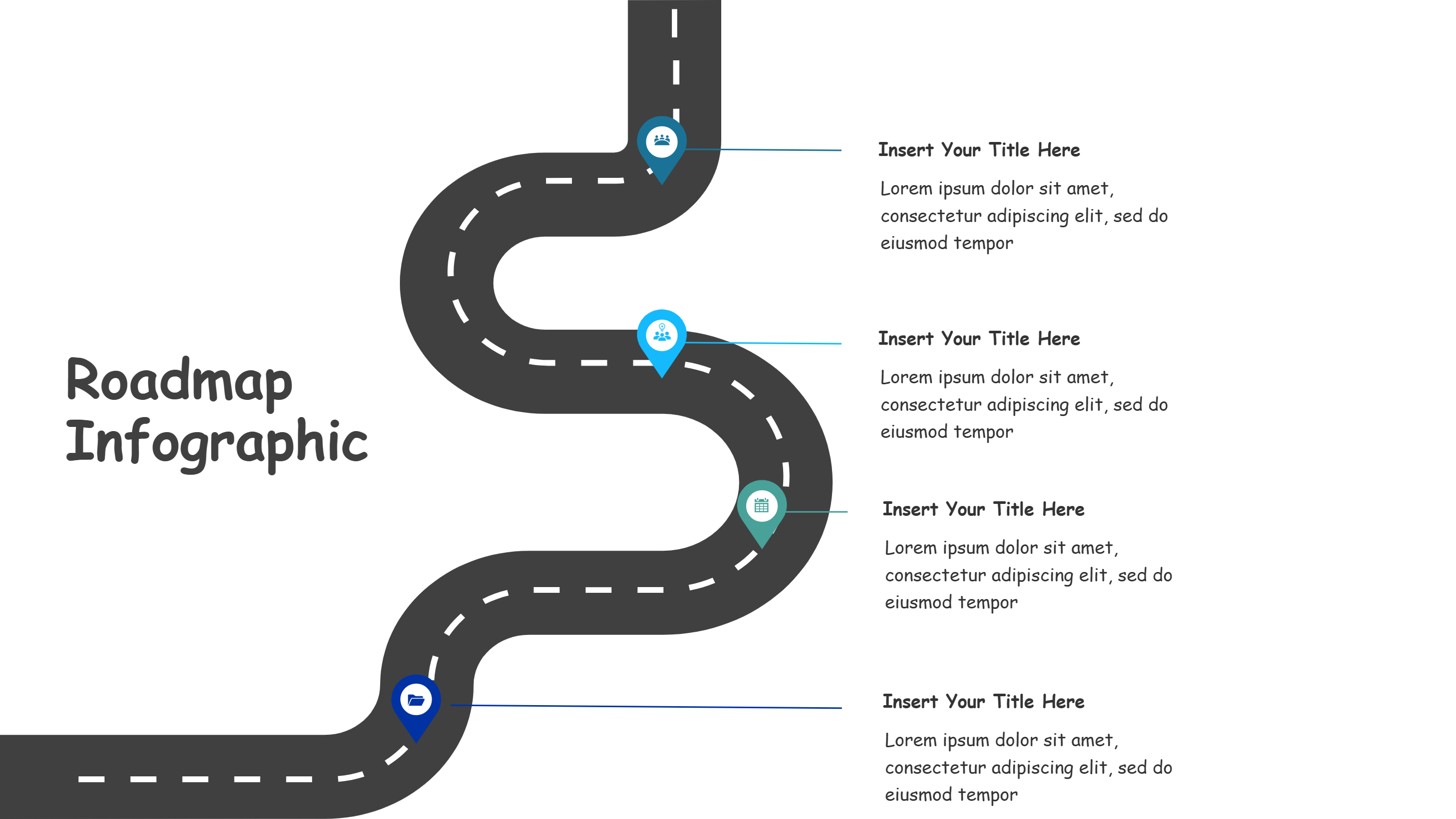
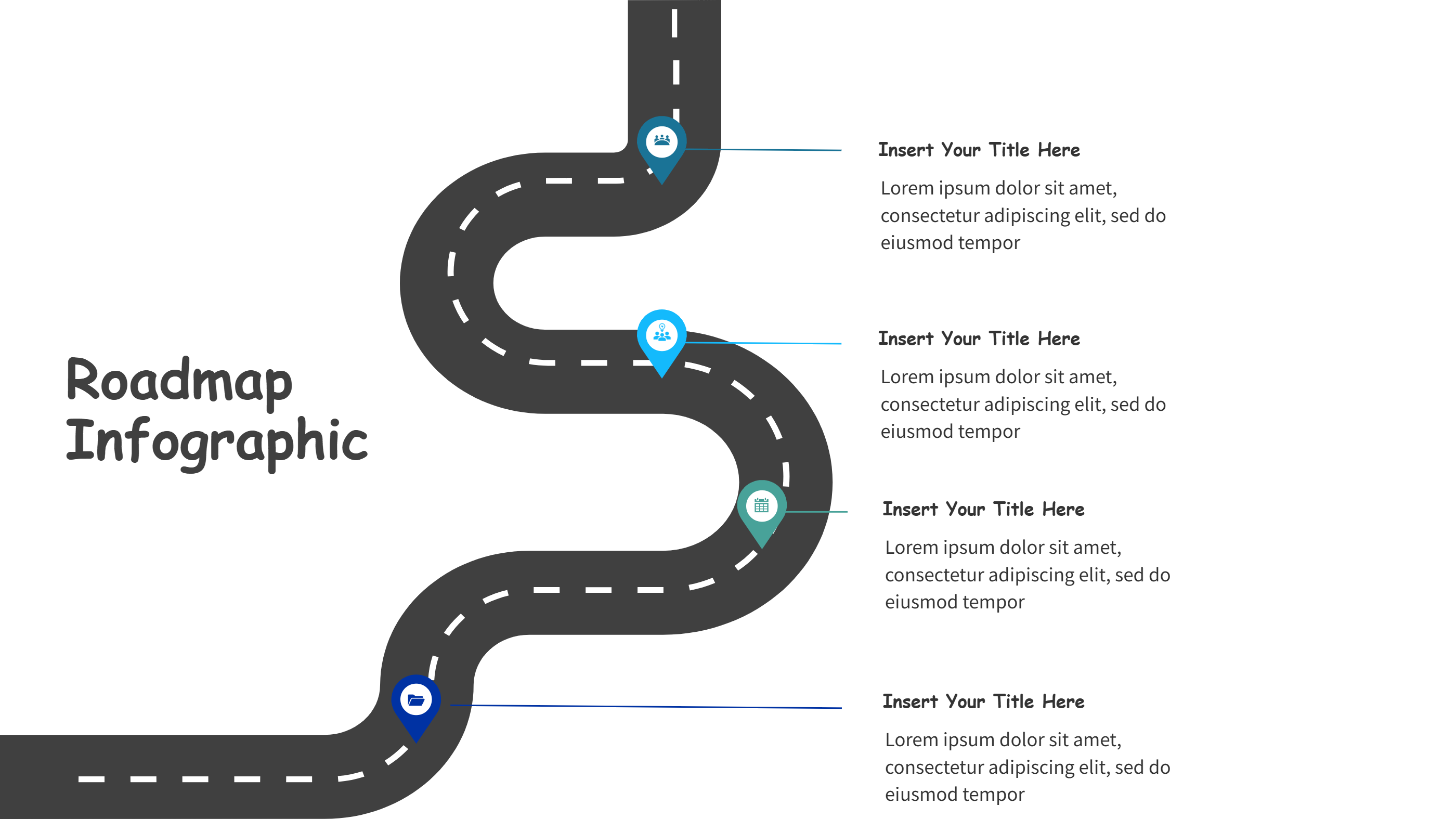
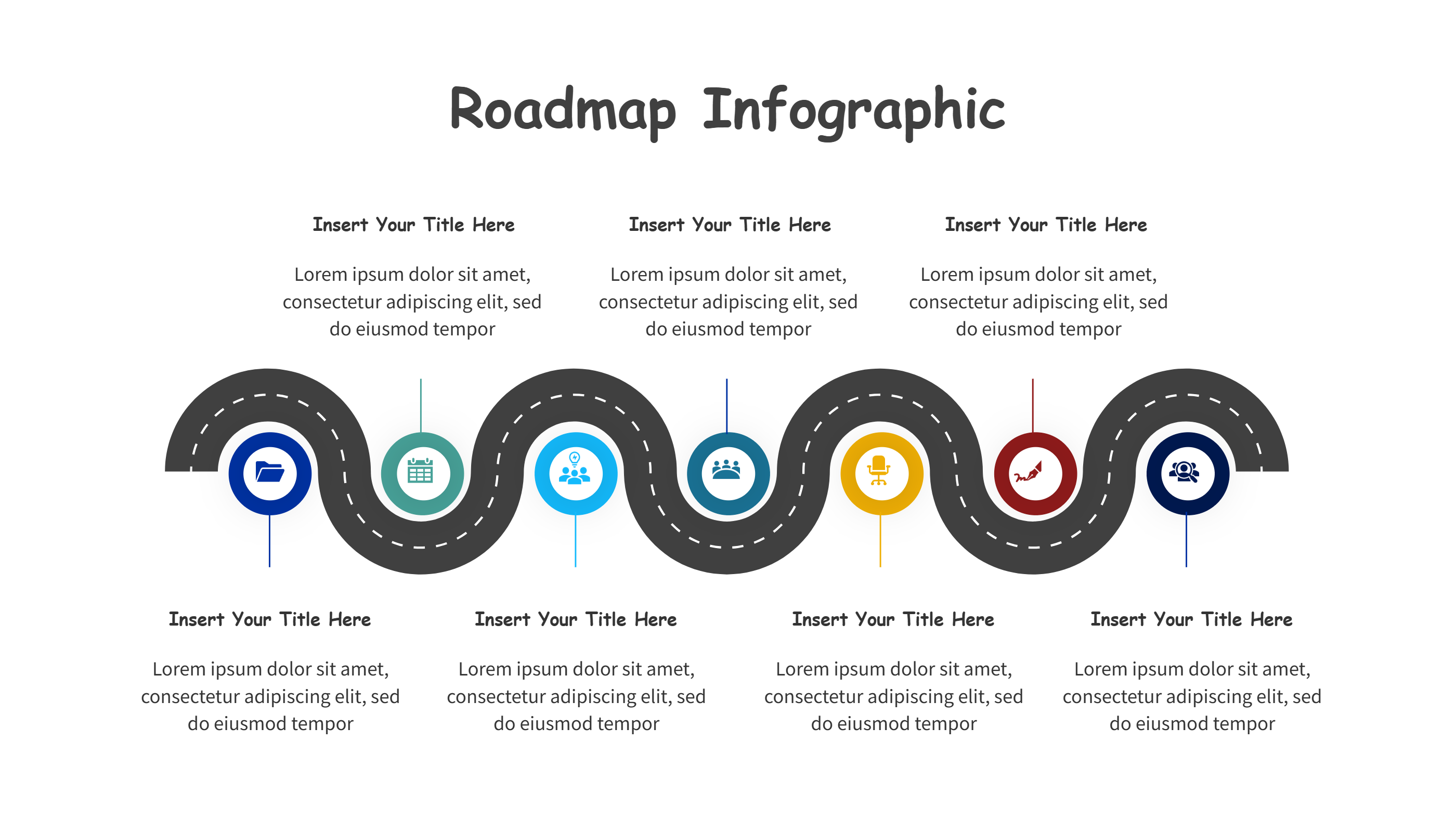
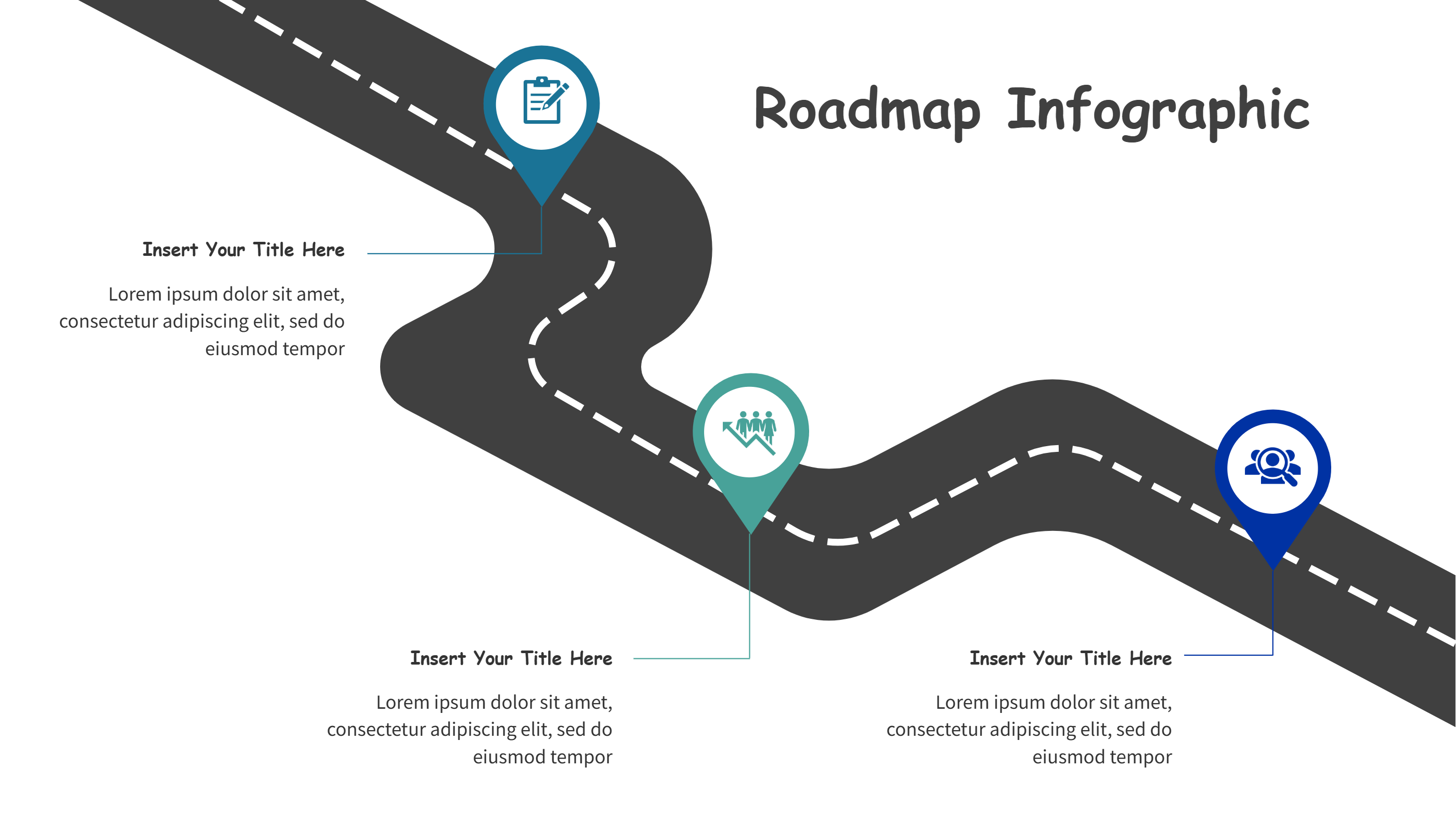
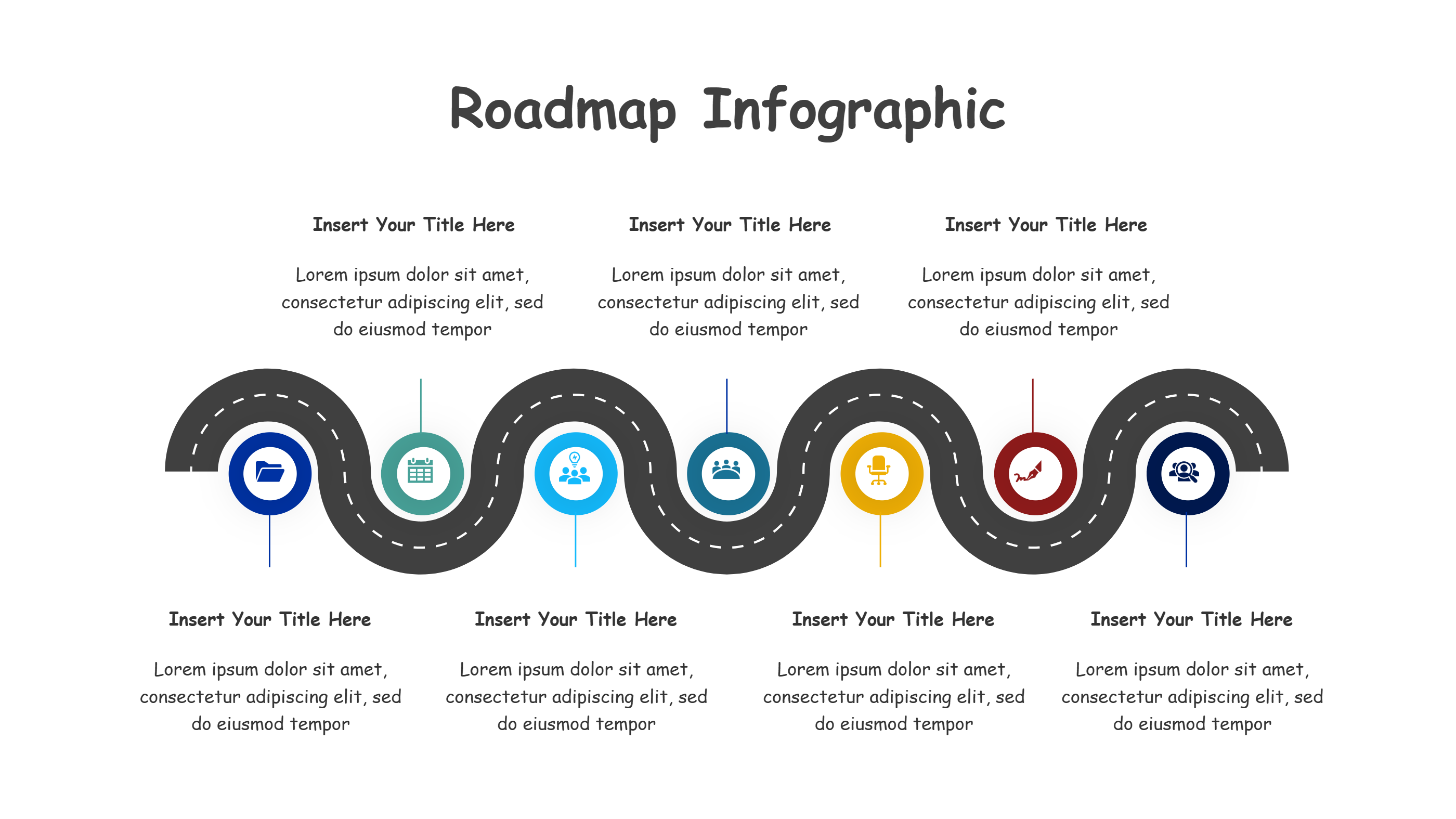
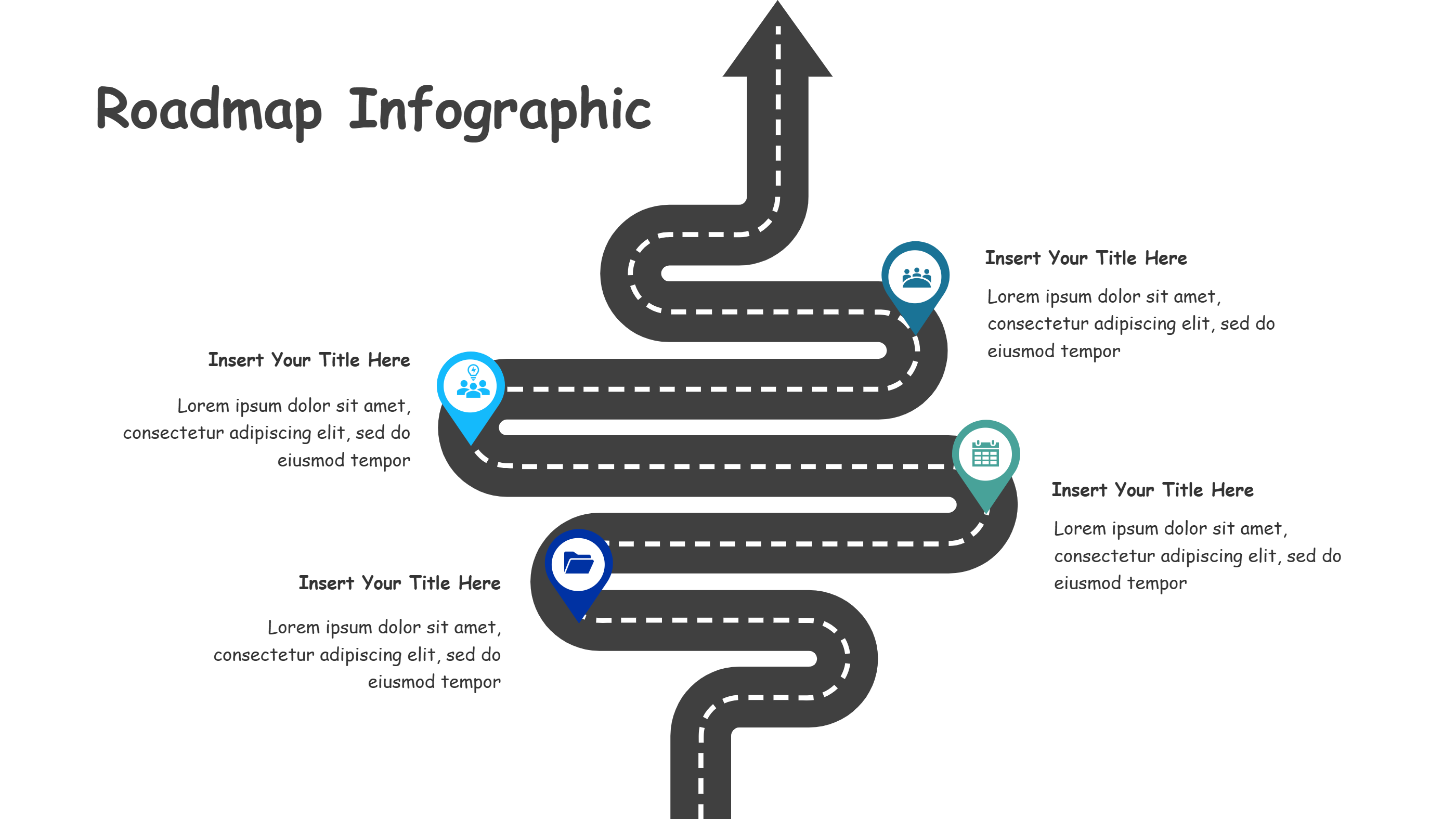
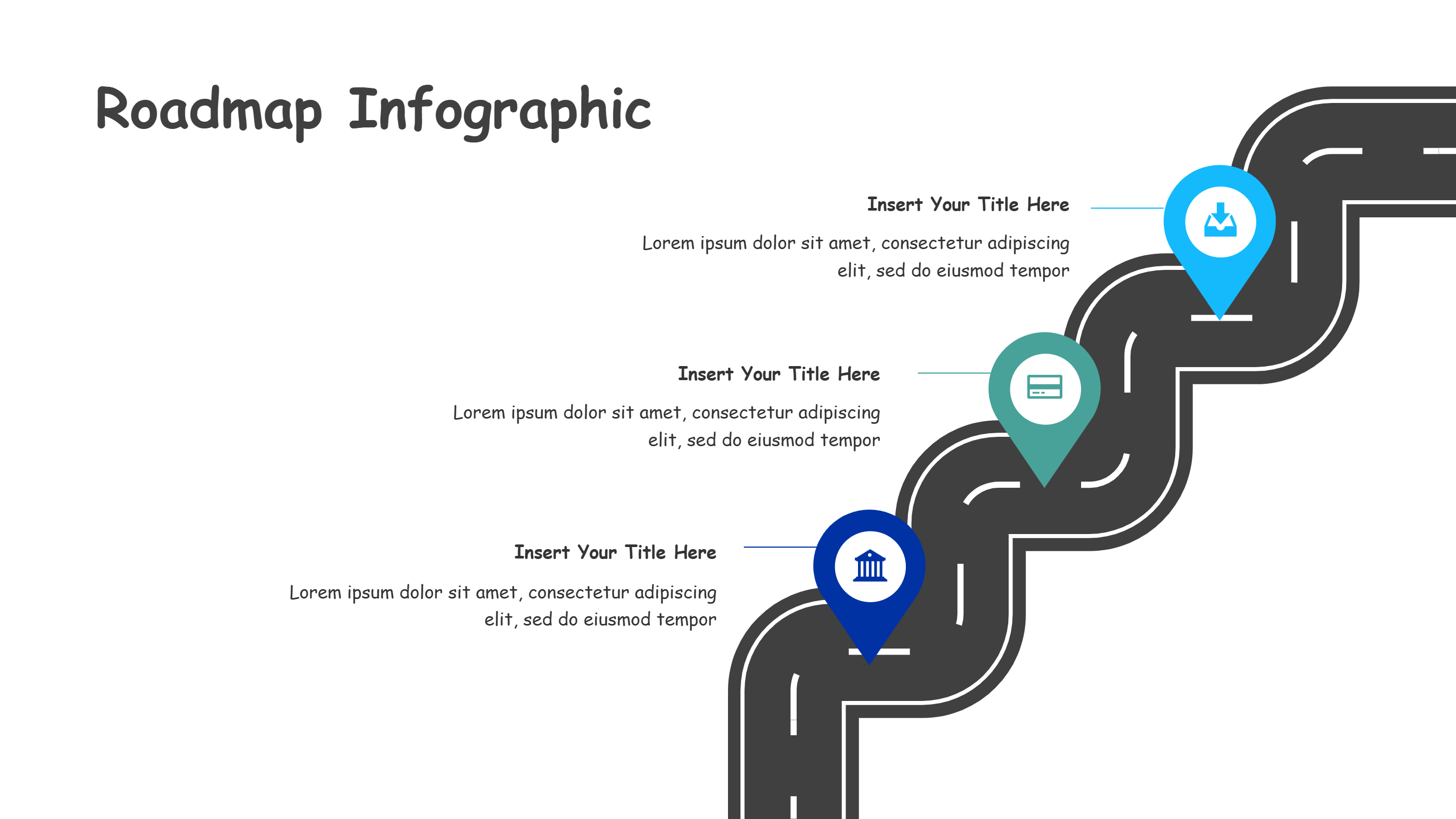
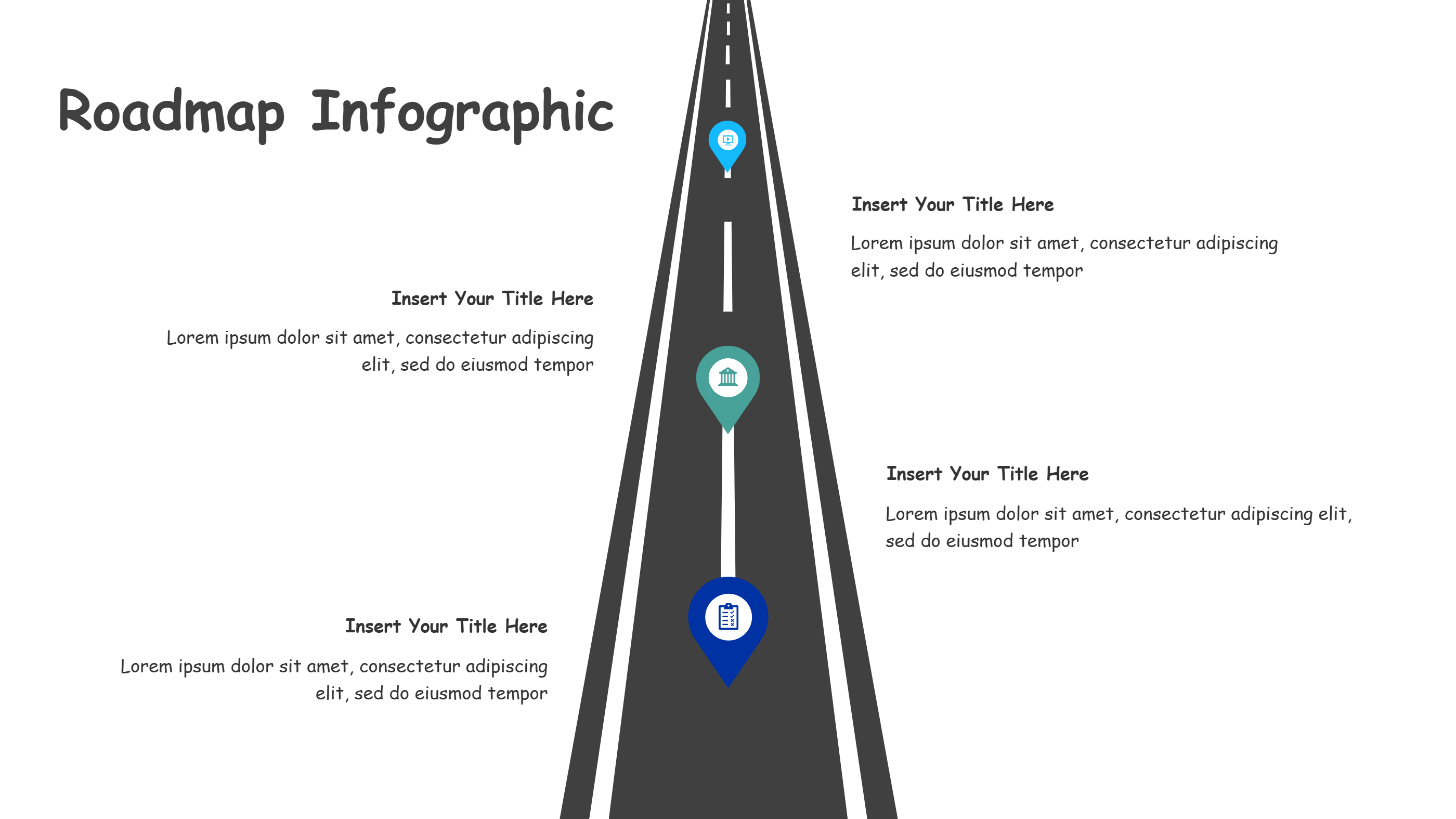
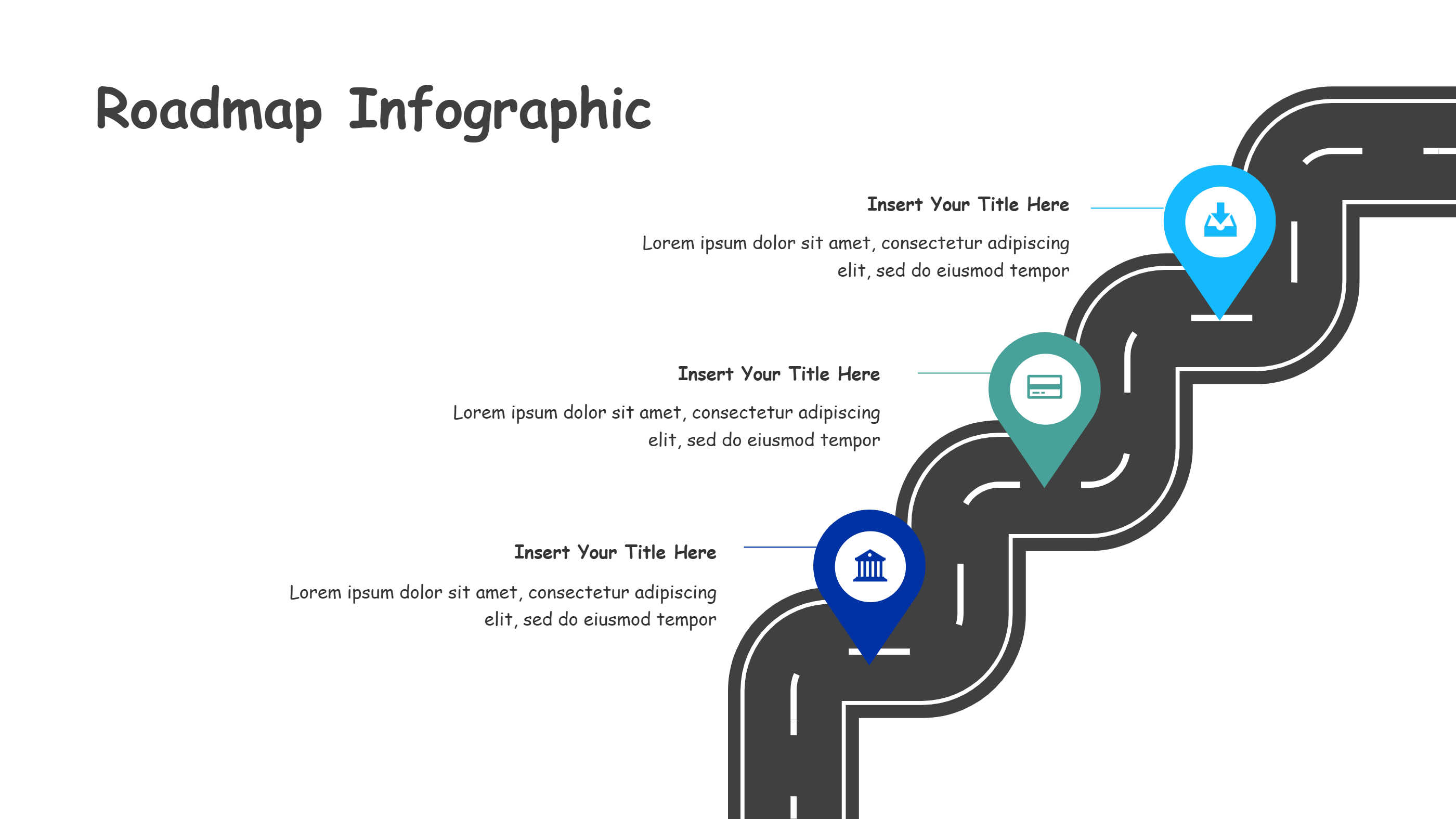
A winding four stop journey infographic shows a curved path with clear markers and callouts. The path bends gently, so the story feels natural and easy to follow. Each marker has space for a short label and a brief note. This helps people see the key stages without reading a long paragraph. The ribbon road shape keeps the eye moving across the slide. It works well for a roadmap, a customer journey, or a delivery plan. The layout keeps the message clean and balanced, so it fits a PPT slide with room to breathe. It also works on small screens because the text stays short. Use it when you need a simple visual that feels friendly and clear.
When to Use Winding Four Stop Journey Infographic
Use this winding four stop journey template when you want to show a path from start to goal. It is a good fit for project rollouts, service plans, and product journeys. Teams can use it to show stages in training, onboarding, or change plans. It is also useful for event planning, travel routes, or learning paths. The curve makes the flow feel smooth, so the story looks calm and easy to read. Each callout can hold a short action, a date, or a goal. The layout keeps attention on the path while leaving space for a title and key notes. It is a good choice when you need a clear PPT template for a simple story with several steps.
How to Use Winding Four Stop Journey
On the home page, open the AI generation tool. Choose the winding journey template from the list. Enter a short prompt that names your goal and the key stages you want to show. The tool builds the infographic in the same layout and style. Review the labels and keep them brief. Adjust colors and icons to match your topic. Save the result when it looks right. This gives you a ready slide that you can present or edit.
Download and Edit the Template
Click the download button to open the online editor. Replace the sample text with your own words. Keep each callout short so the path stays clear. You can reorder the labels to match your flow. Adjust colors to match your brand or to group related ideas. Click the save button when you finish. Choose PPT, PNG, or SVG for the file format you need. Download the file and share it with your team or clients.
Examples of Winding Four Stop Journey AI Prompt Usage
Example 1:
Create a winding journey roadmap for a new service launch. Show the path from idea to launch with clear markers and short notes. Keep the style clean for a PPT slide.
Example 2:
Make a customer journey path for an online store. Start with discovery and move through shopping, checkout, and support. Use simple labels and soft colors.
Example 3:
Design a delivery plan journey for a community event. Show the key stages from planning to setup and follow up. Keep the callouts short and easy to read.
Recommended Similar Infographic Templates
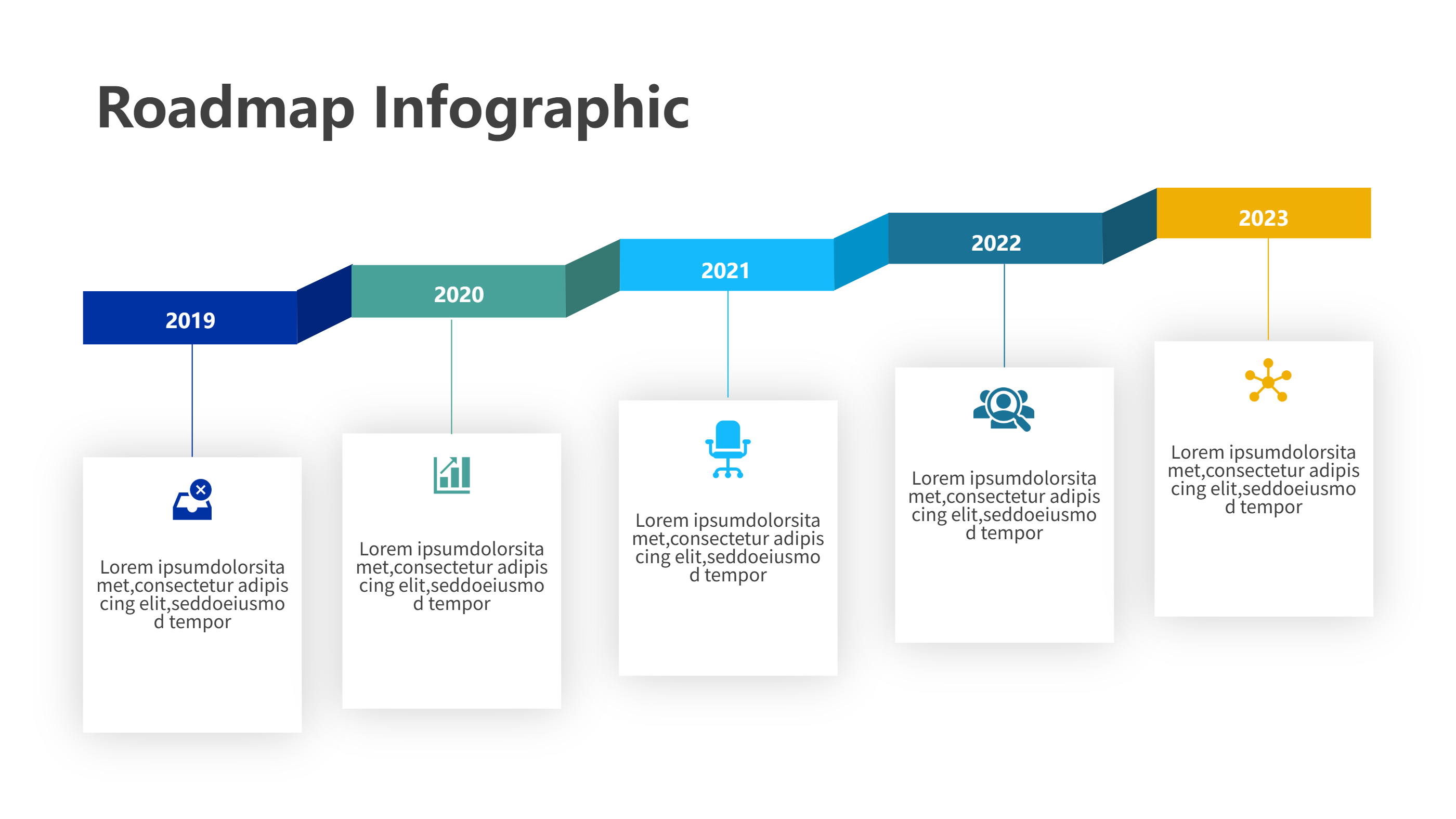
Related Template 1: Direction Arrow Roadmap Infographic for DaVinci Resolve
Related Template 2: Infographics Templates for DaVinci Resolve Curved Roadmap
Related Template 3: Timeline Template Aesthetic Business Roadmap
Related Template 4: Circle Diagram Template for PPT Download
FAQs
Q: Is this winding journey template easy to edit?
A: Yes, you can replace the labels and notes in the online editor.
Q: Can I change the colors to match my brand?
A: Yes, you can adjust colors and icons to fit your style.
Q: Can I use this for a customer journey slide?
A: Yes, the curved path works well for customer stories and service flows.
Q: Can I print this as a handout?
A: Yes, the layout prints cleanly and stays readable on one page.
Q: Can I export the file as PNG or SVG?
A: Yes, you can download PPT, PNG, or SVG formats from the editor.