Free Stakeholder Map Template for PPT Download
What is Stakeholder Map Infographic
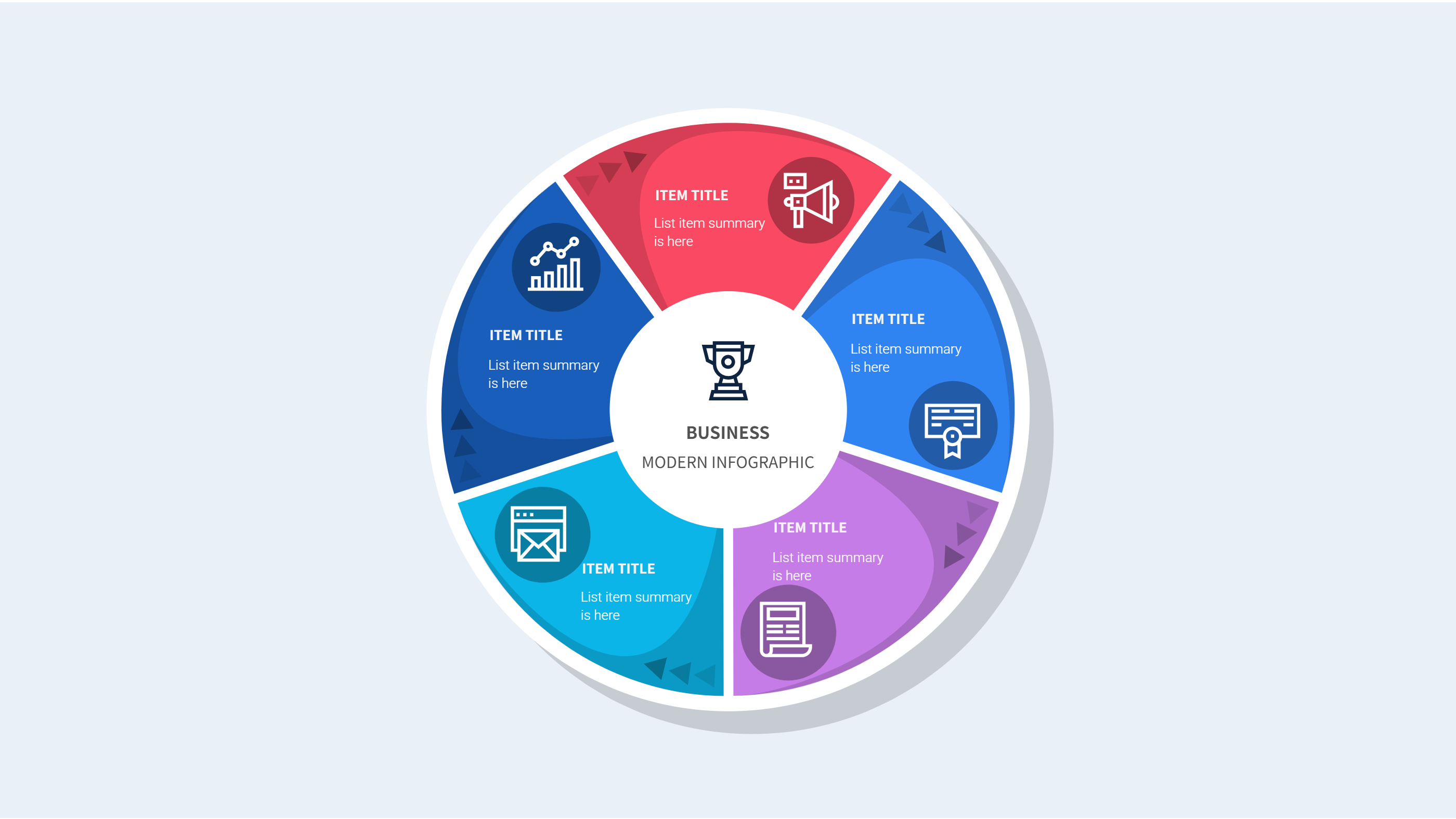
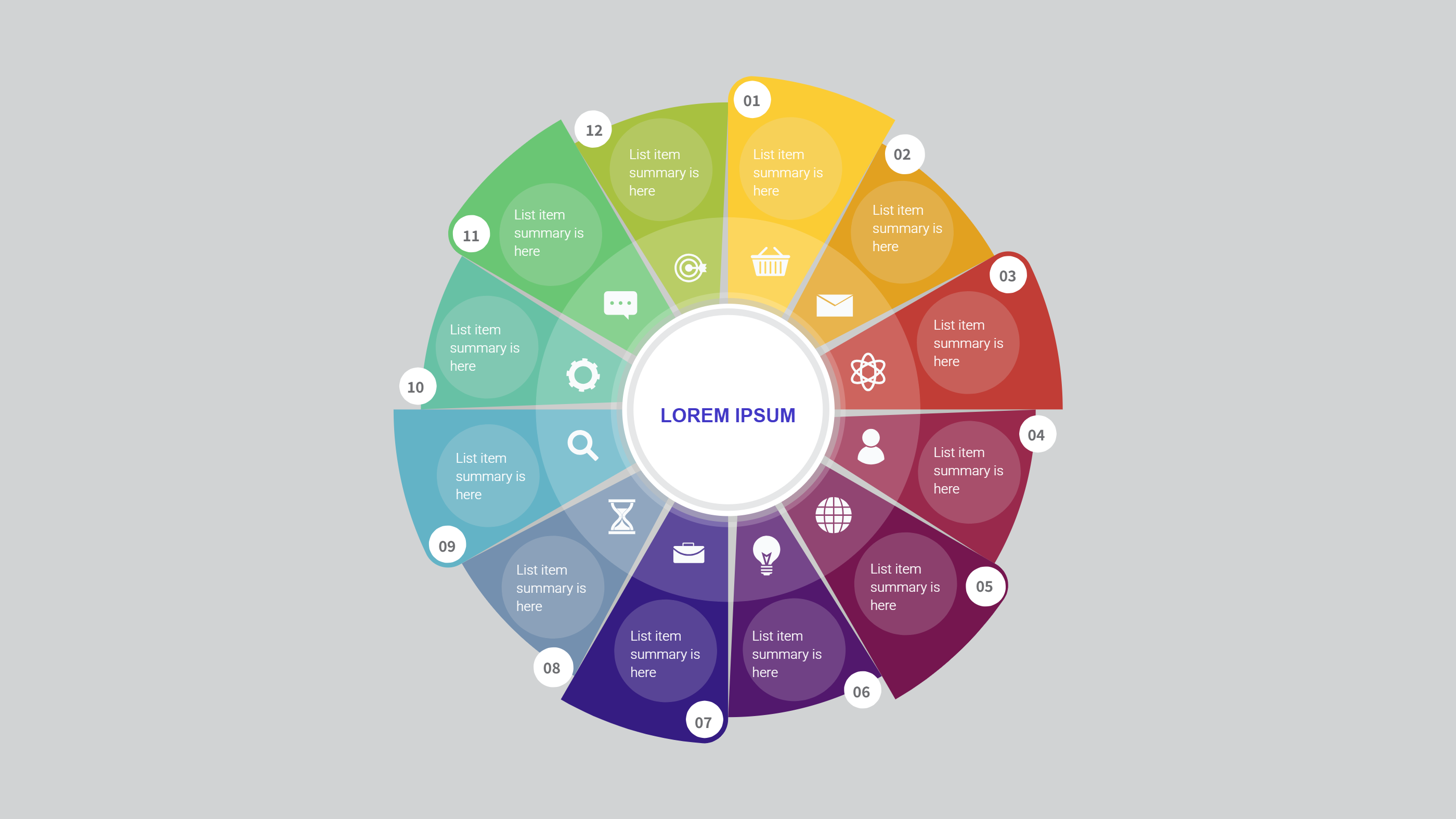
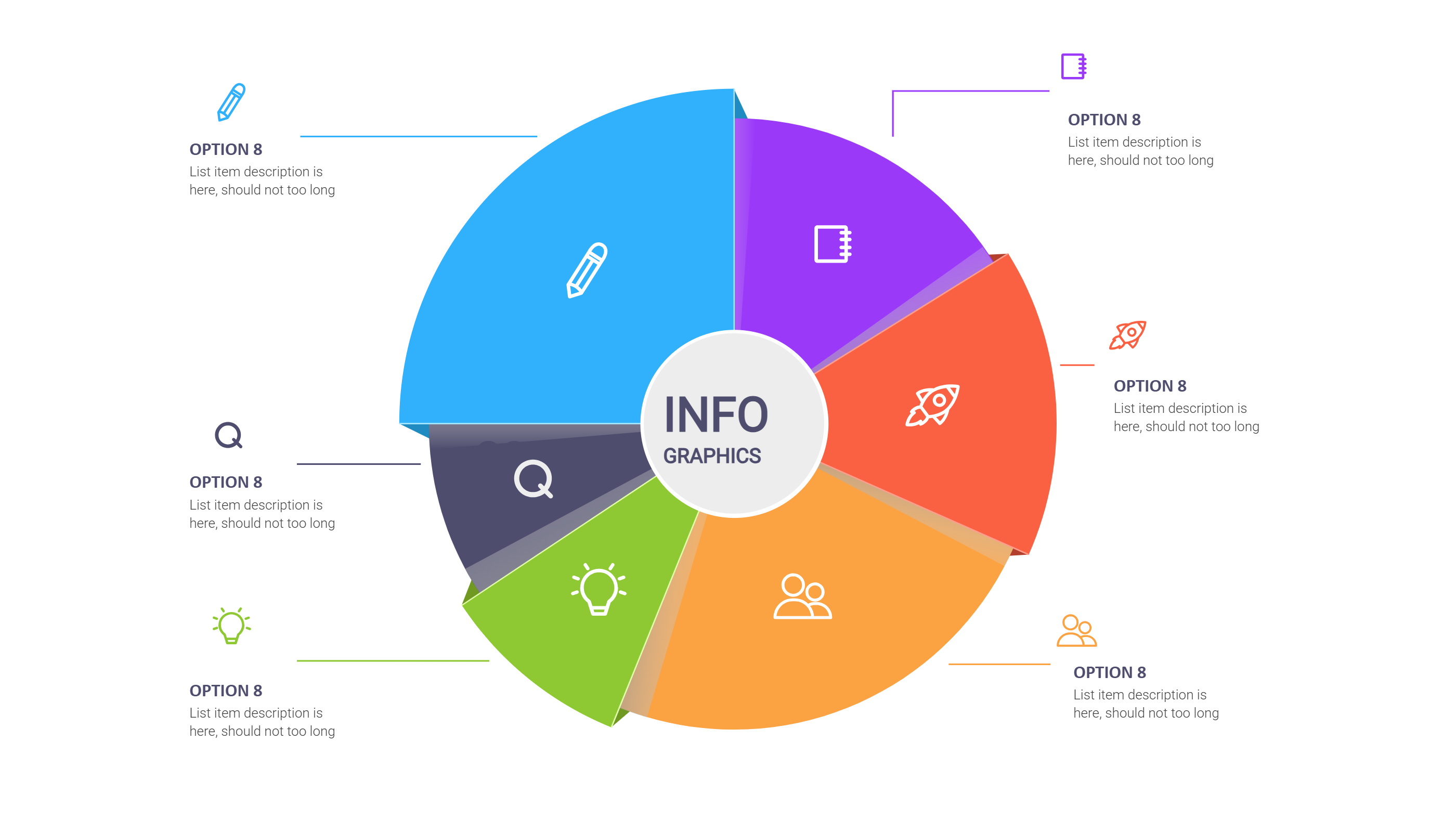
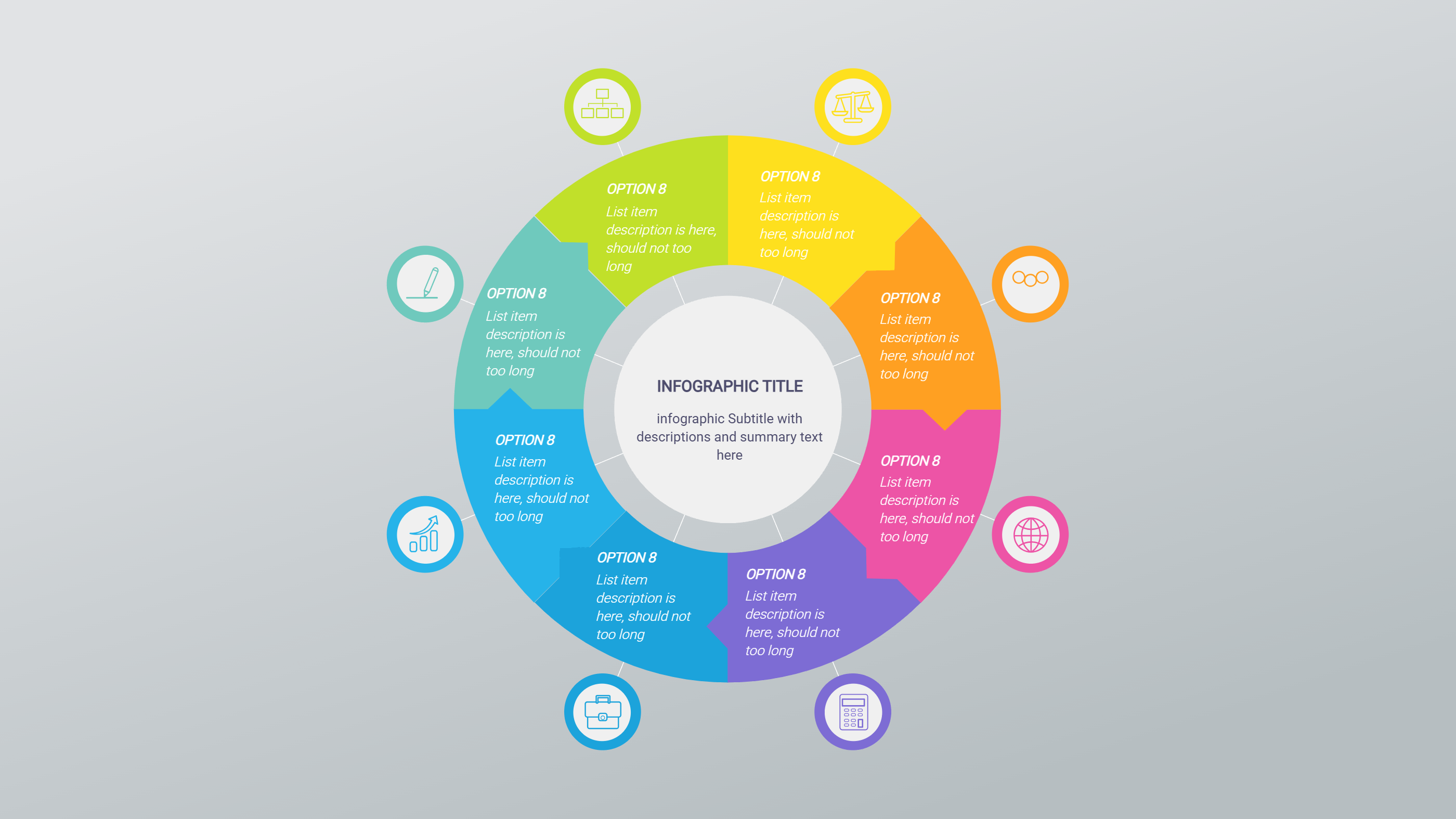
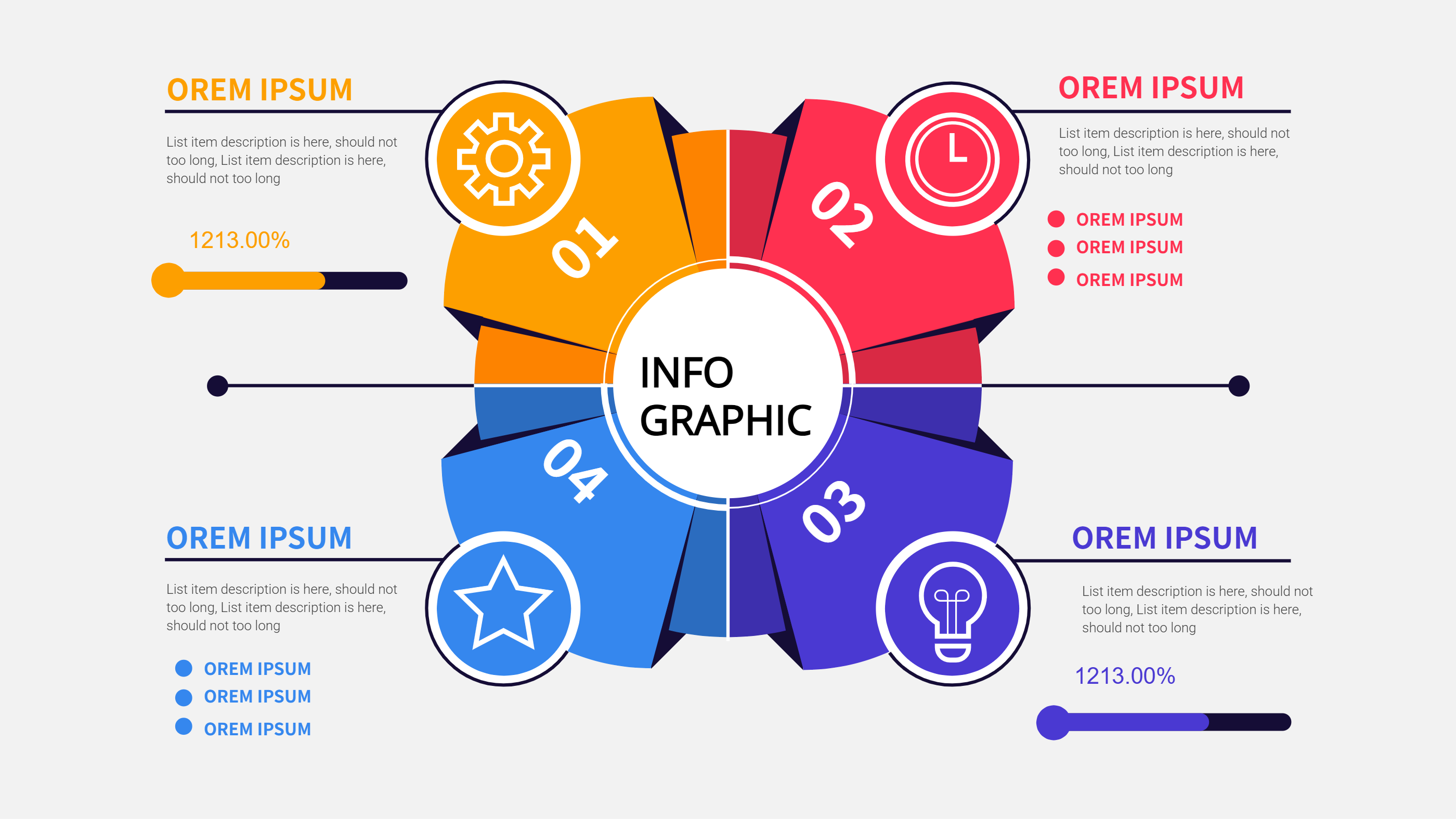
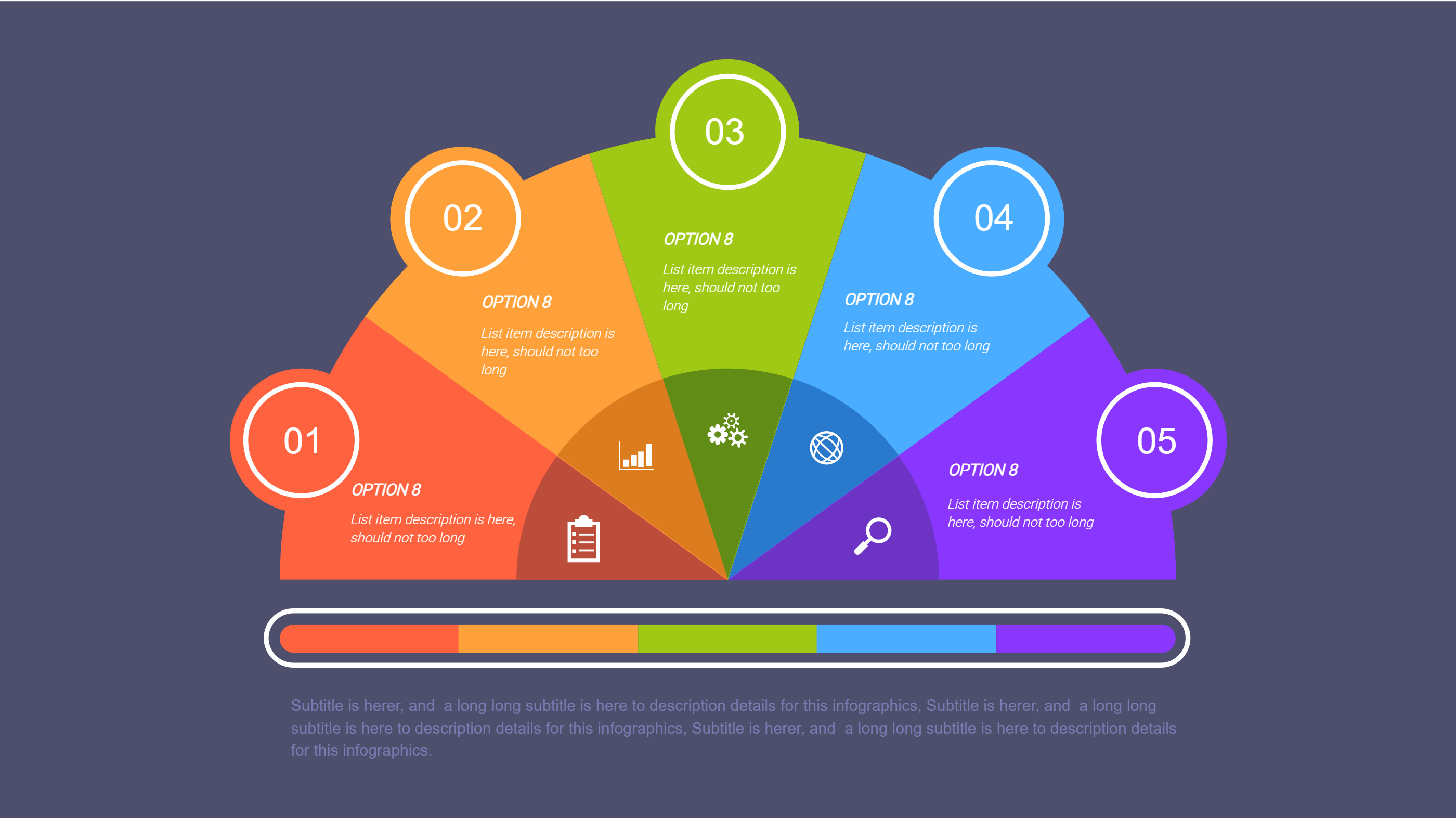
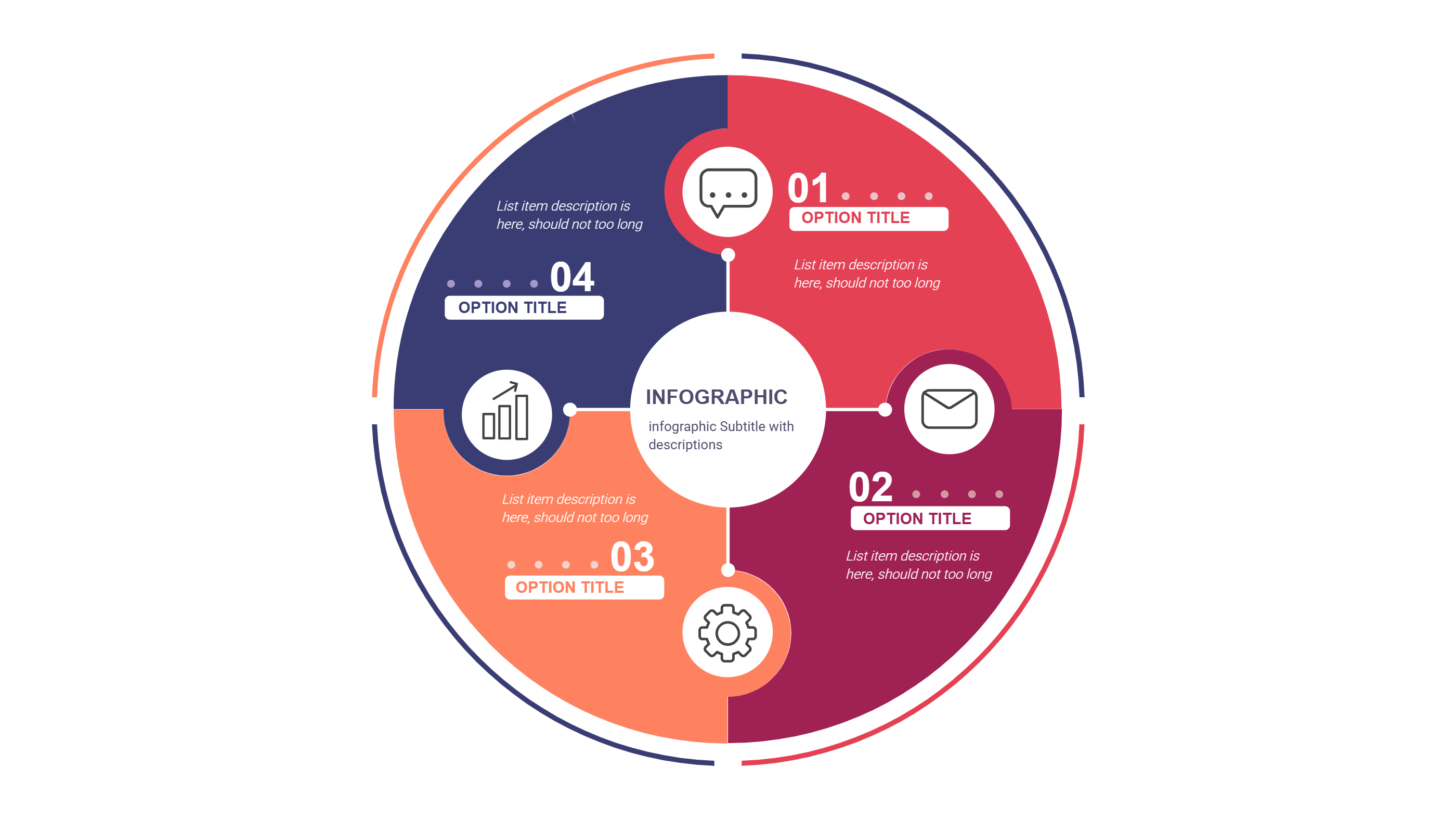
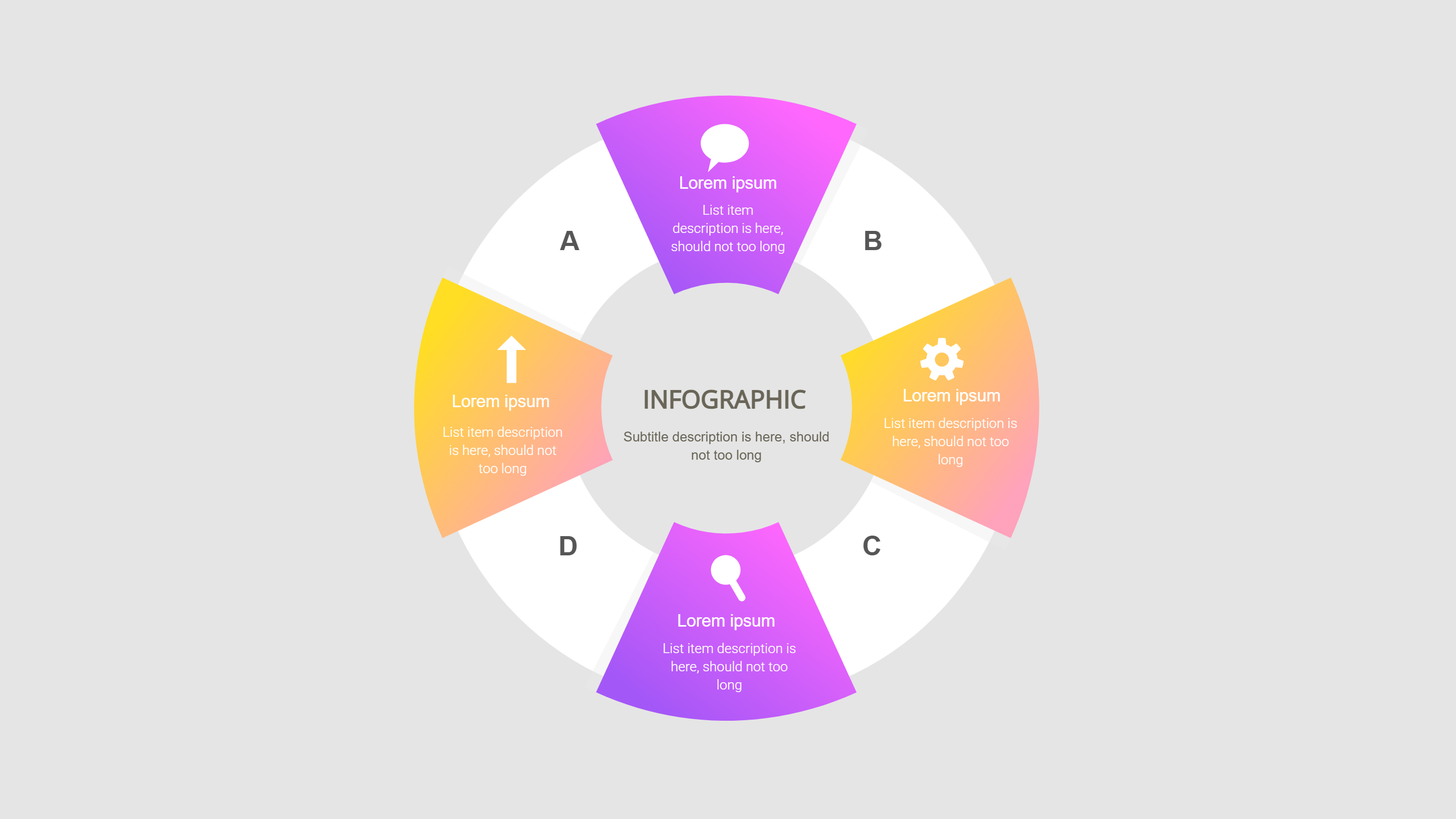
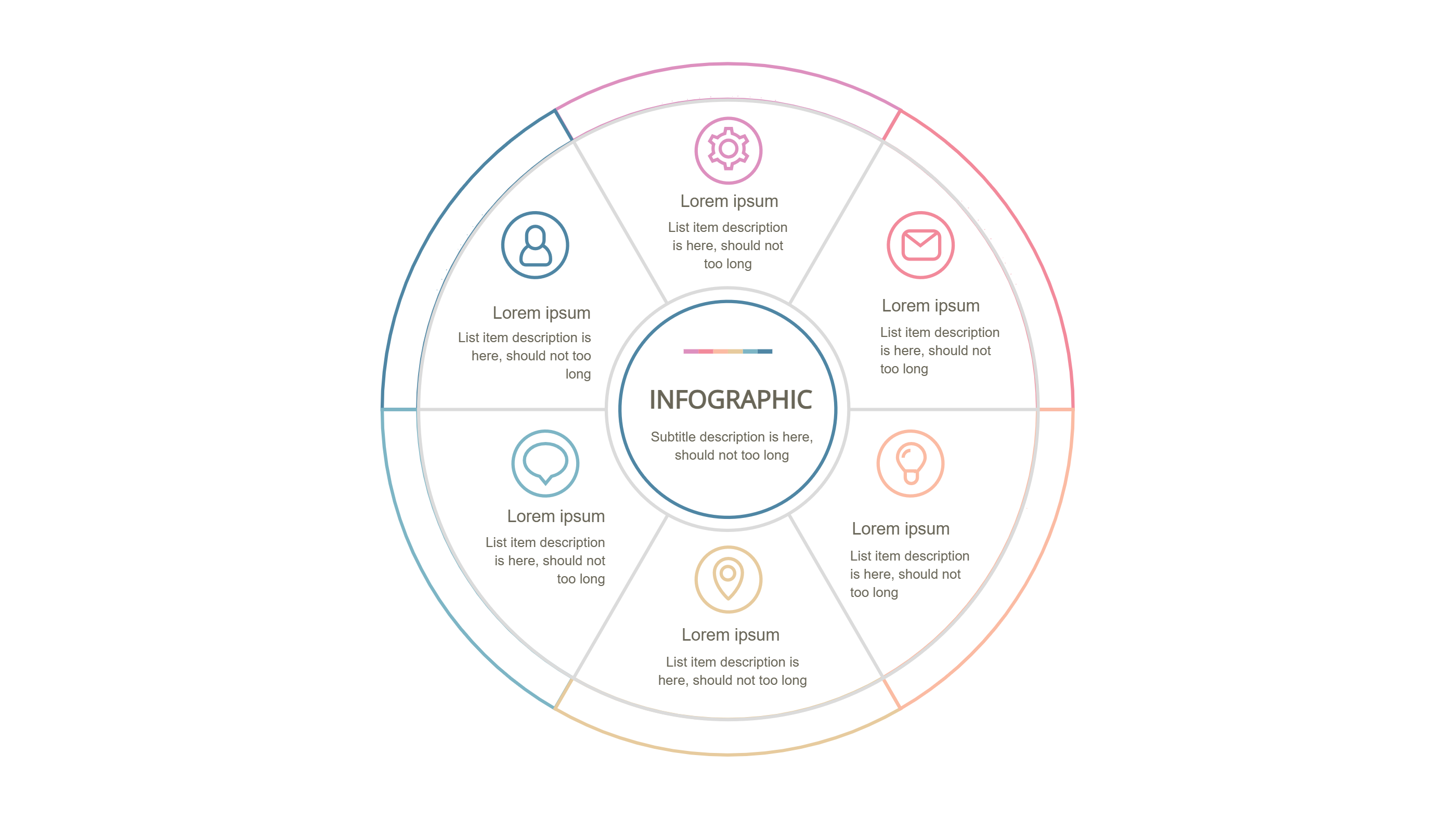
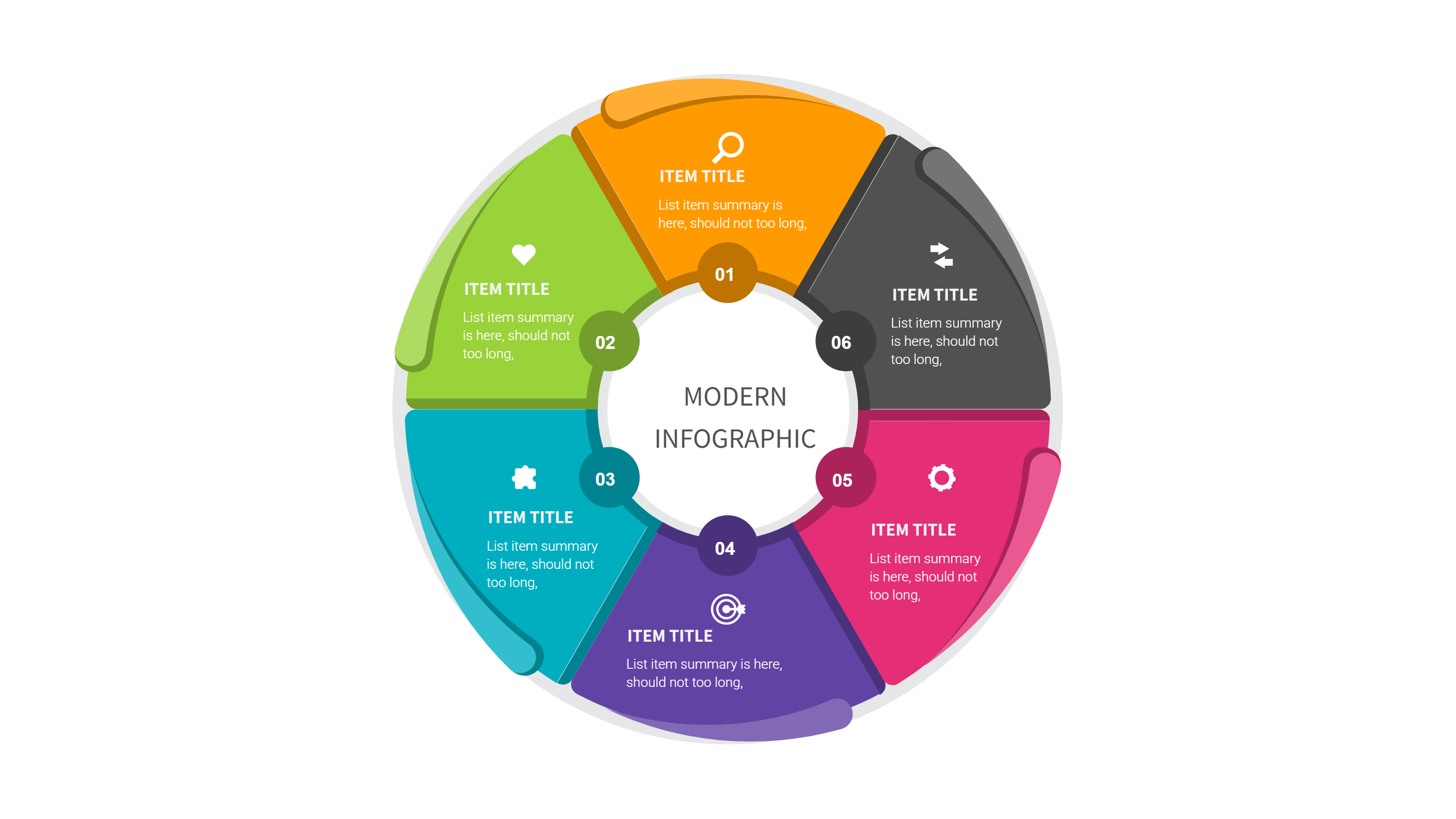
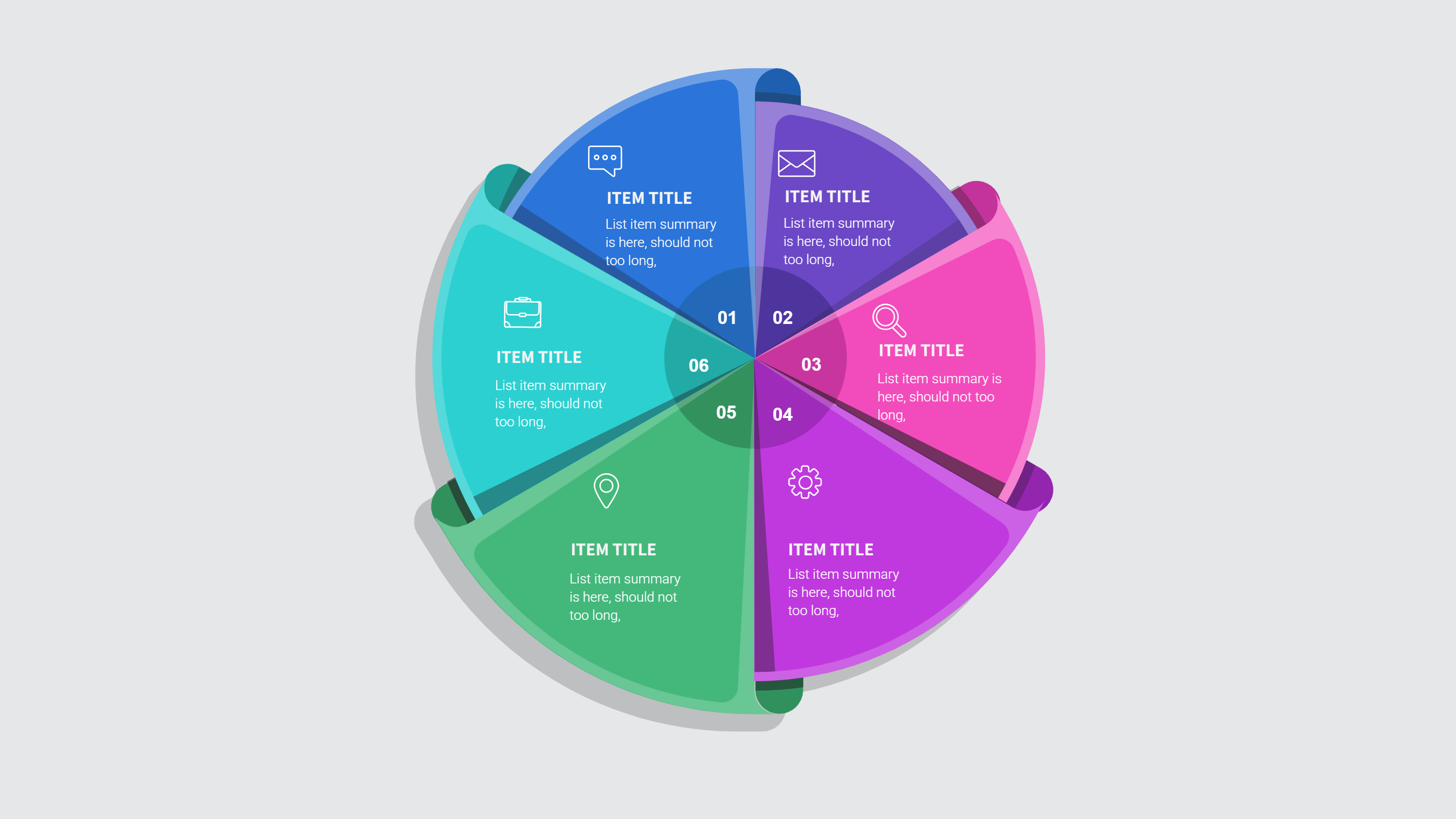
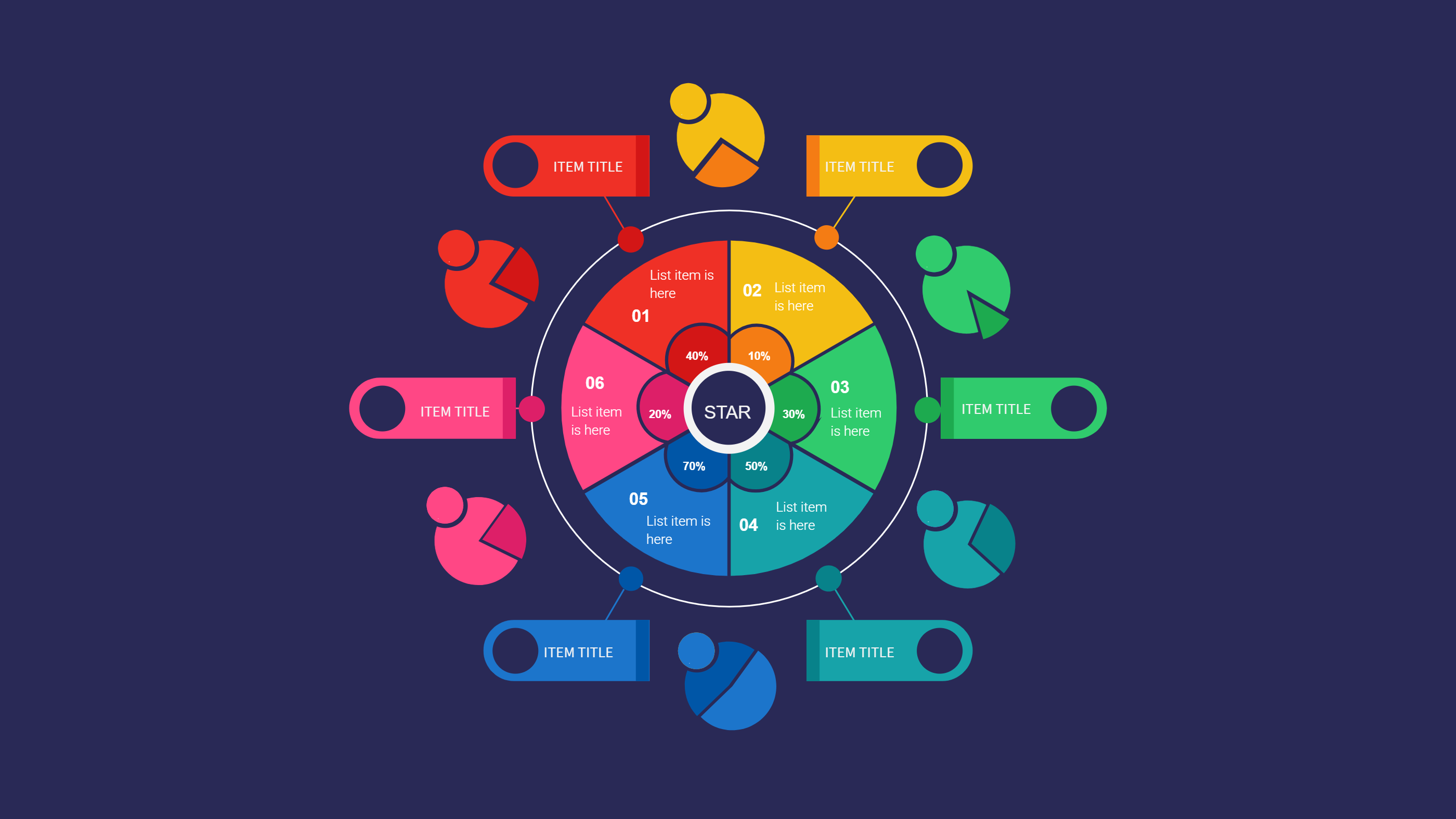
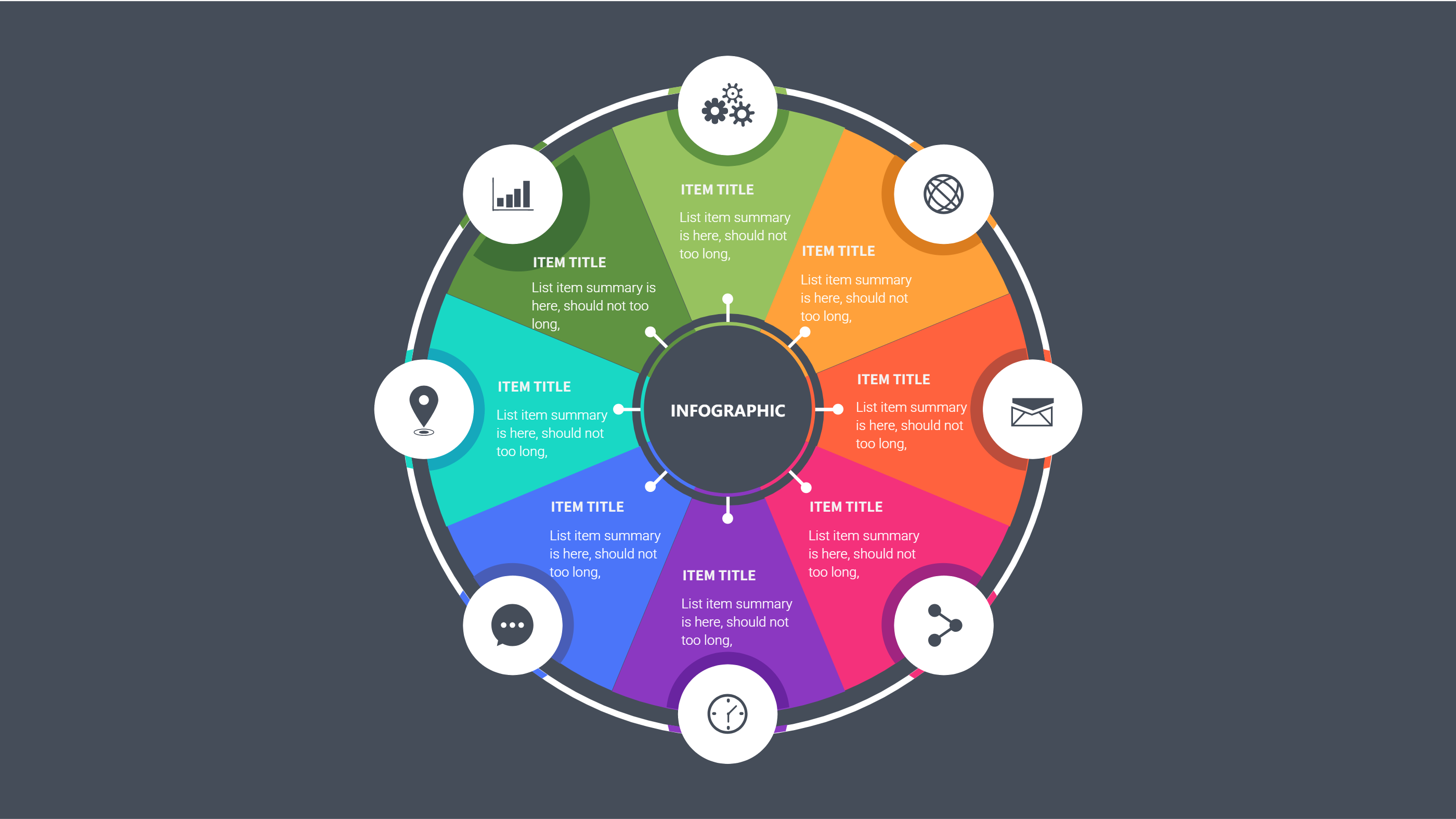
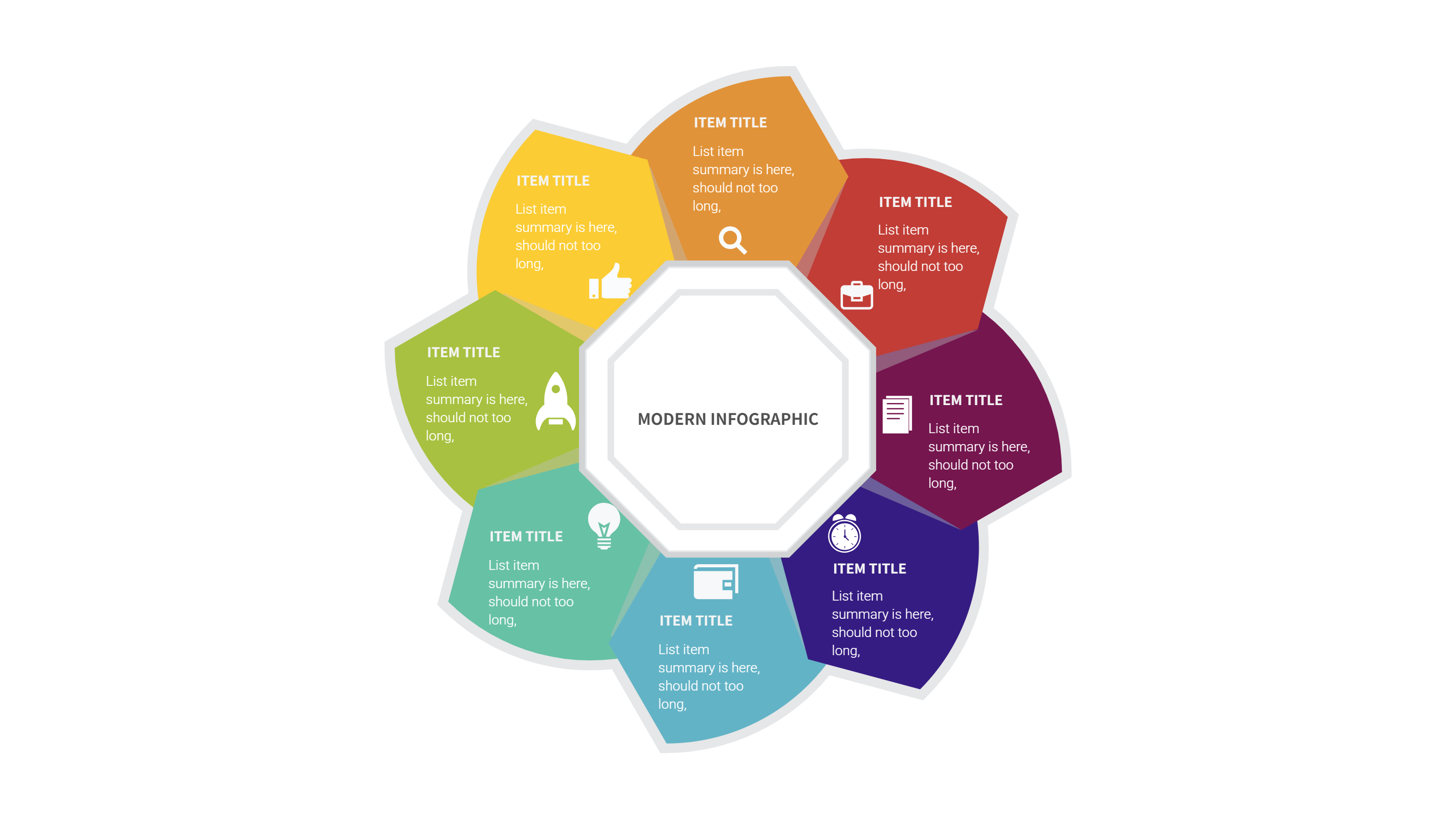
A stakeholder map infographic shows the people and groups around a central idea. It places the main goal in the middle and spreads related groups around it. Each group gets a clear space so the viewer can read fast. The layout feels calm and balanced, so it works well for a PPT slide. It is a simple way to show who is close to the work and who has a lighter role. You can keep labels short and easy to scan. The circle layout keeps attention on the center message while still showing the wider scene. This free stakeholder map template for PPT download gives you a clean starting point without extra noise. It helps teams agree on who matters for a plan and why. It also helps a client understand the full picture in one glance.
When to Use Stakeholder Map Template Infographic
Use this stakeholder map template when you need to explain who is involved in a project. It fits project kickoffs, change plans, and client updates. It also works for community programs, school events, product launches, and training sessions. The map makes it easy to show who needs a message and who can support the work. It is useful when a team is large and roles are not clear. The circular layout keeps the focus on the main goal while still giving every group a place. Use it when you want a friendly and open tone. It is also a good choice for a PPT download that must look neat and simple. If you want to show shared input without a long report, this template is a good fit.
How to Use Free Stakeholder Map Template for PPT Download
On the home page, open the AI generation tool. Choose the stakeholder map template from the template list. Type a short prompt that names the project and the groups around it. The tool builds the infographic in the same layout and style. Review the labels and make sure they are short. You can change icons and colors to match your brand. Save the result when it looks right. This gives you a ready PPT slide that you can present or edit.
Download and Edit the Template
Click the download button to open the online editor. Update the center title and the group labels. Adjust colors to match your theme. Use short words so the map stays clear. Click the save button when you are done. Choose PPT, PNG, or SVG as the file format. Download the file and share it with your team. This flow keeps the free template easy to reuse across many projects.
Examples of Stakeholder Map AI Prompt Usage
Example 1:
Create a stakeholder map for a city park refresh. Put the park plan in the center. Place residents, local shops, city staff, volunteers, and visitors around it. Keep labels short and use a clean circle layout.
Example 2:
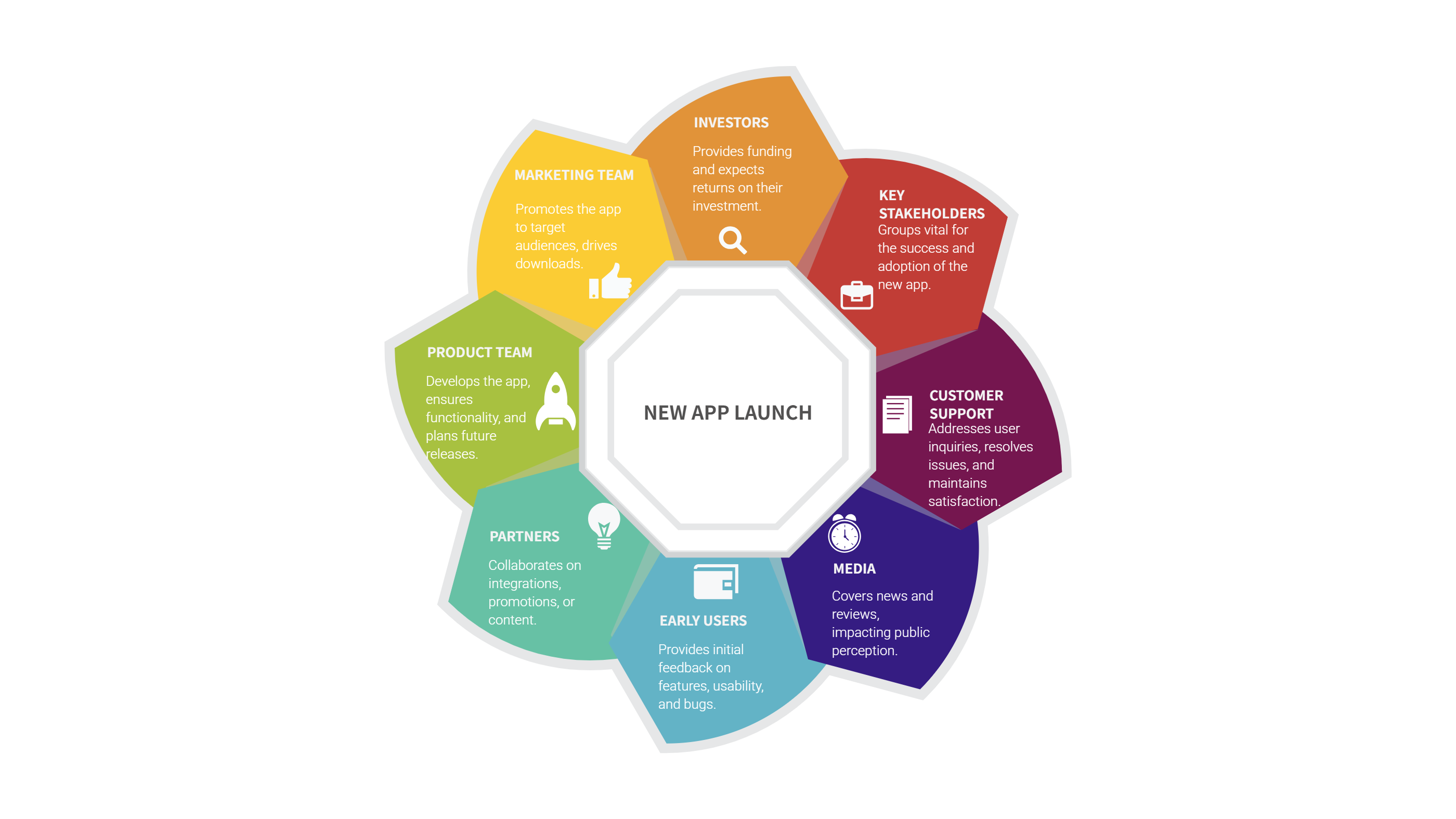
Make a stakeholder map for a new mobile app launch. Put the app name in the middle. Add product team, customer support, partners, early users, and media around the center. Use a simple style that looks good on a PPT slide.
Example 3:
Design a stakeholder map for a school open house. Put the event in the center. Place students, parents, teachers, sponsors, and local groups around it. Use friendly colors and clear text.
Example Infographic Image
Recommended Similar Infographic Templates
Related Template 1: Circle Diagram Template for PPT Download
Related Template 2: Concept Map Focus Areas Infographic Template
Related Template 3: PowerPoint Concept Map Hexagon Infographic Template
Related Template 4: Infographic in Video Hub Layout Template
FAQs
Q: Is this stakeholder map template free to download?
A: Yes, you can download the PPT file and edit the text for your own project.
Q: Can I use this stakeholder map template for a client meeting?
A: Yes, it is clear and simple, so it works well for client updates.
Q: How many groups should I place around the center?
A: Use the groups that matter most and keep the map easy to read.
Q: Can I change the colors and icons?
A: Yes, the online editor lets you adjust colors and replace icons.
Q: Can I export the file as PNG or SVG?
A: Yes, you can save the design as PPT, PNG, or SVG.
Q: Will the template work for a small team plan?
A: Yes, it also fits small teams and short project plans.