Balanced Scorecard Template for Simple PPT Scoreboard

What is Balanced Scorecard Template Infographic
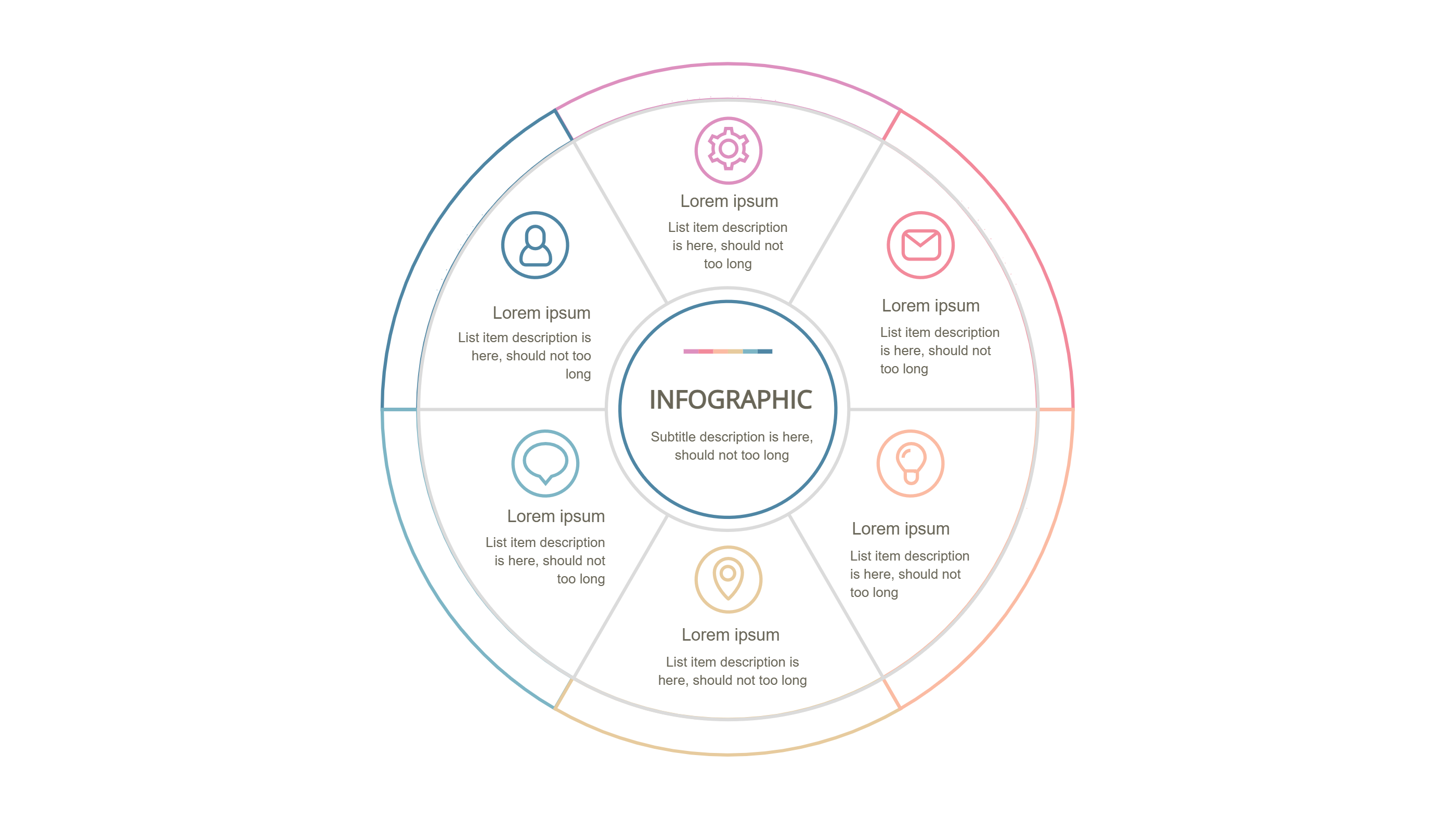
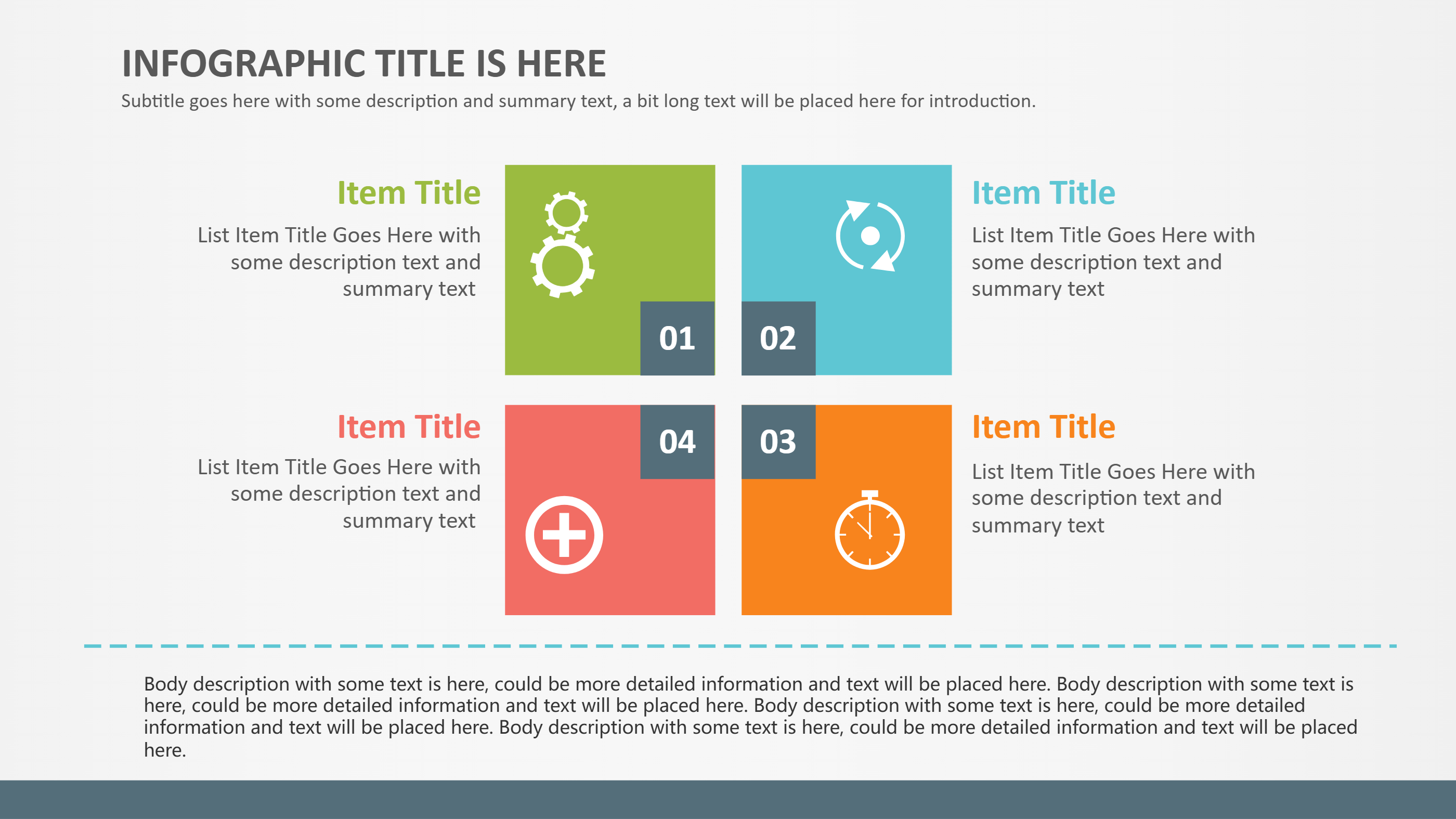
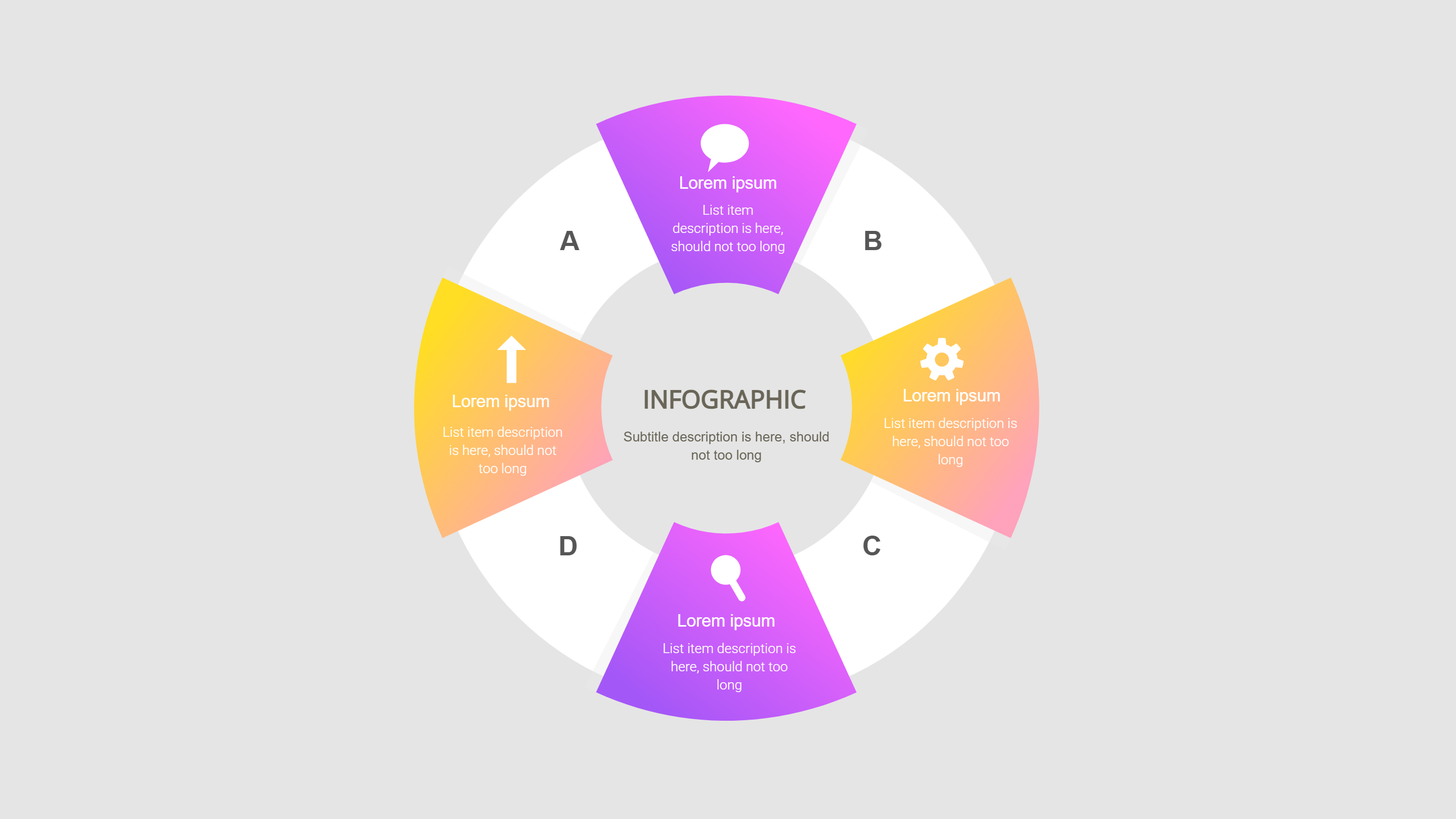
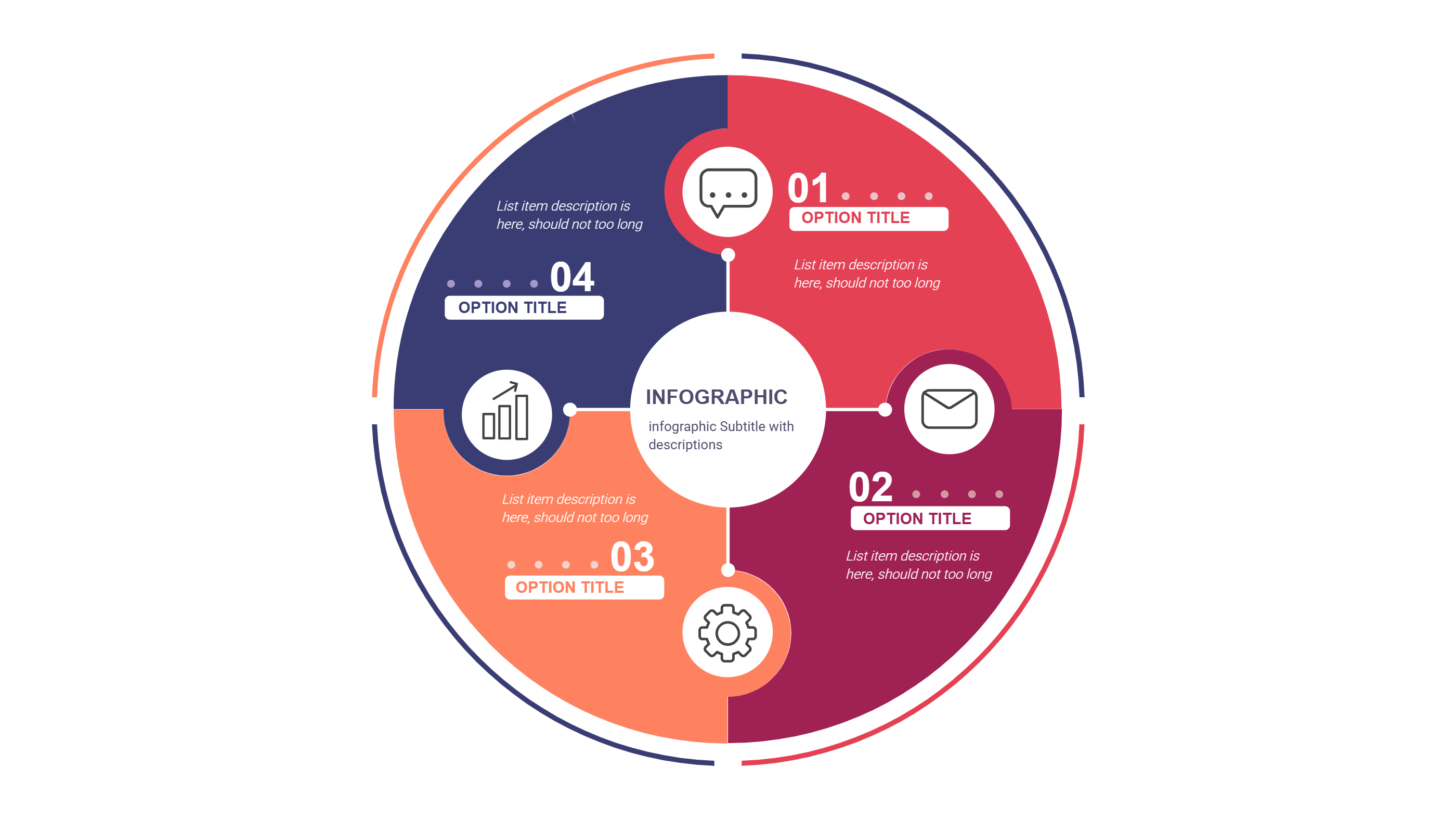
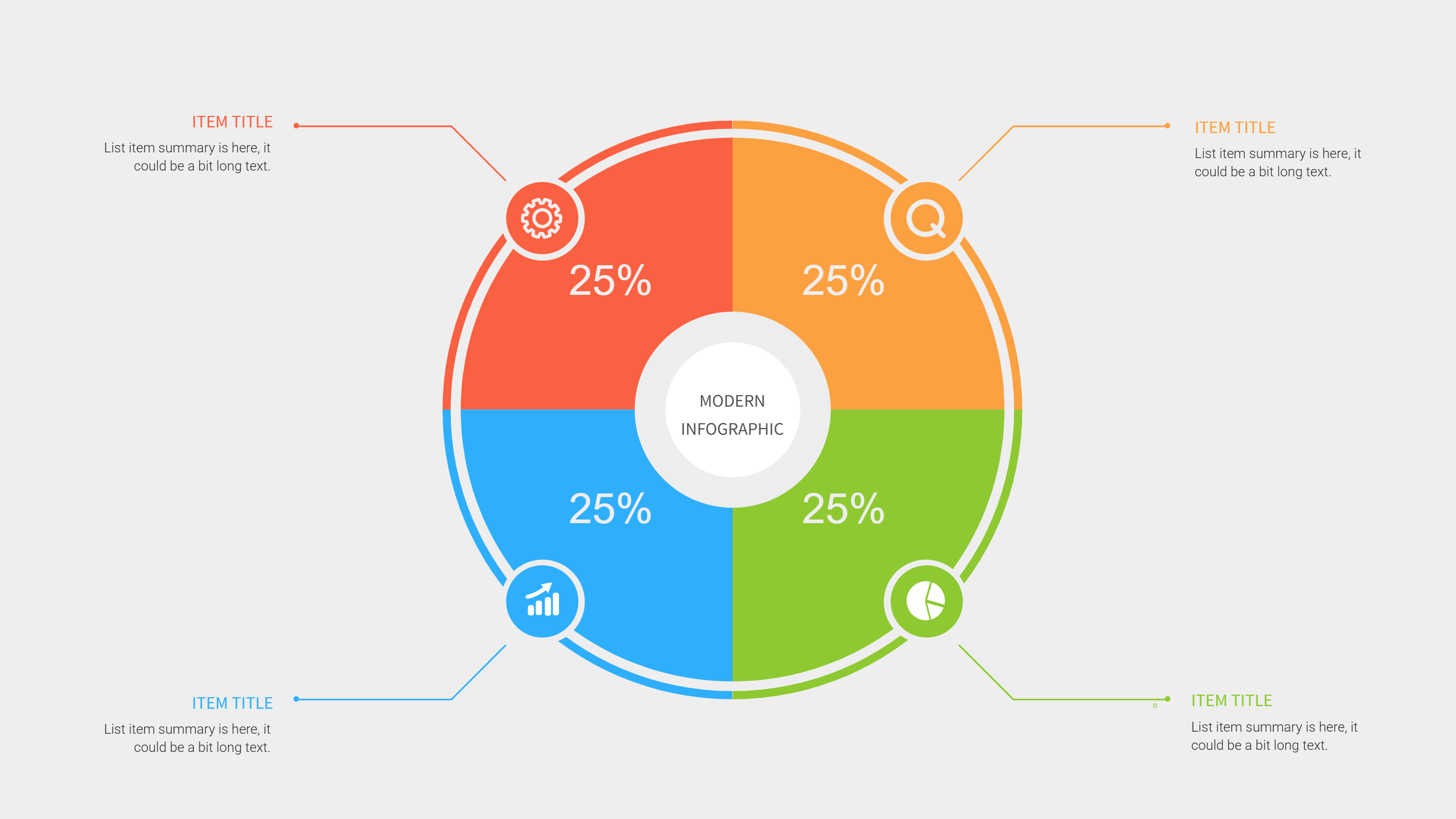
A balanced scorecard template infographic is a clear way to show goals in four simple areas. It keeps the view balanced by giving each area the same space. Each box can hold a short goal, a simple measure, and a small note. The layout stays clean and easy to read on a PPT slide. It helps a team see what matters most without long text. This template is a calm and tidy way to track progress across people, customers, money, and work.
When to Use Balanced Scorecard Template Infographic
Use this balanced scorecard template when you need a quick view of goals and progress. It works for team check ins, project updates, and small business reviews. It is useful for school plans and club goals as well. The four box layout keeps the message short and focused. It fits monthly reviews, weekly updates, and planning sessions. It is a good choice when you want a simple PPT page that keeps everyone aligned.
How to Use Balanced Scorecard Template for Simple PPT Scoreboard
On the home page, open the AI generation tool. Choose the balanced scorecard template from the list. Enter a short prompt with your four areas and the key goals. The tool builds the infographic in the same layout and style. Review the labels and keep them brief. Adjust colors and icons to match your team. Save the result when it looks right. This gives you a ready slide that you can present or edit.
Download and Edit the Template
Click the download button to open the online editor. Replace the sample text with your own goals. Keep each note short so the scorecard stays clear. You can adjust colors to highlight priority areas. Click the save button when you finish. Choose PPT, PNG, or SVG for the file format you need. Download the file and share it with your team.
Examples of Balanced Scorecard Template AI Prompt Usage
Example 1:
Create a balanced scorecard for a small cafe. Use four areas for guests, team, money, and daily work. Add short notes for each area and keep the style clean.
Example 2:
Make a balanced scorecard for a school club. Show goals for members, events, budget, and learning. Use simple labels that fit a PPT slide.
Example 3:
Design a scorecard for a project team. Use four boxes for progress, quality, time, and support. Keep the text short and easy to scan.
Recommended Similar Infographic Templates
Related Template 1: Metabase Dashboard Templates for Simple PPT Infographics
Related Template 2: 4 Steps to Achieve Your Goals: Making Every Step Count
Related Template 3: 5 Steps to Achieve Corporate Goals
Related Template 4: Organizational Restructuring Progress Report Template
FAQs
Q: Can I change the four areas to fit my team?
A: Yes, you can rename the areas to match your goals.
Q: Do I need numbers in each box?
A: No, you can use short notes or simple marks instead.
Q: Is this scorecard useful for small teams?
A: Yes, the layout is clear and works well for small groups.
Q: Can I use this template for a monthly review?
A: Yes, it is a good fit for monthly or weekly updates.
Q: Can I export the file as PNG or SVG?
A: Yes, you can download PPT, PNG, or SVG from the editor.