Tree Infographic Template for Idea Growth
What is Tree Infographic
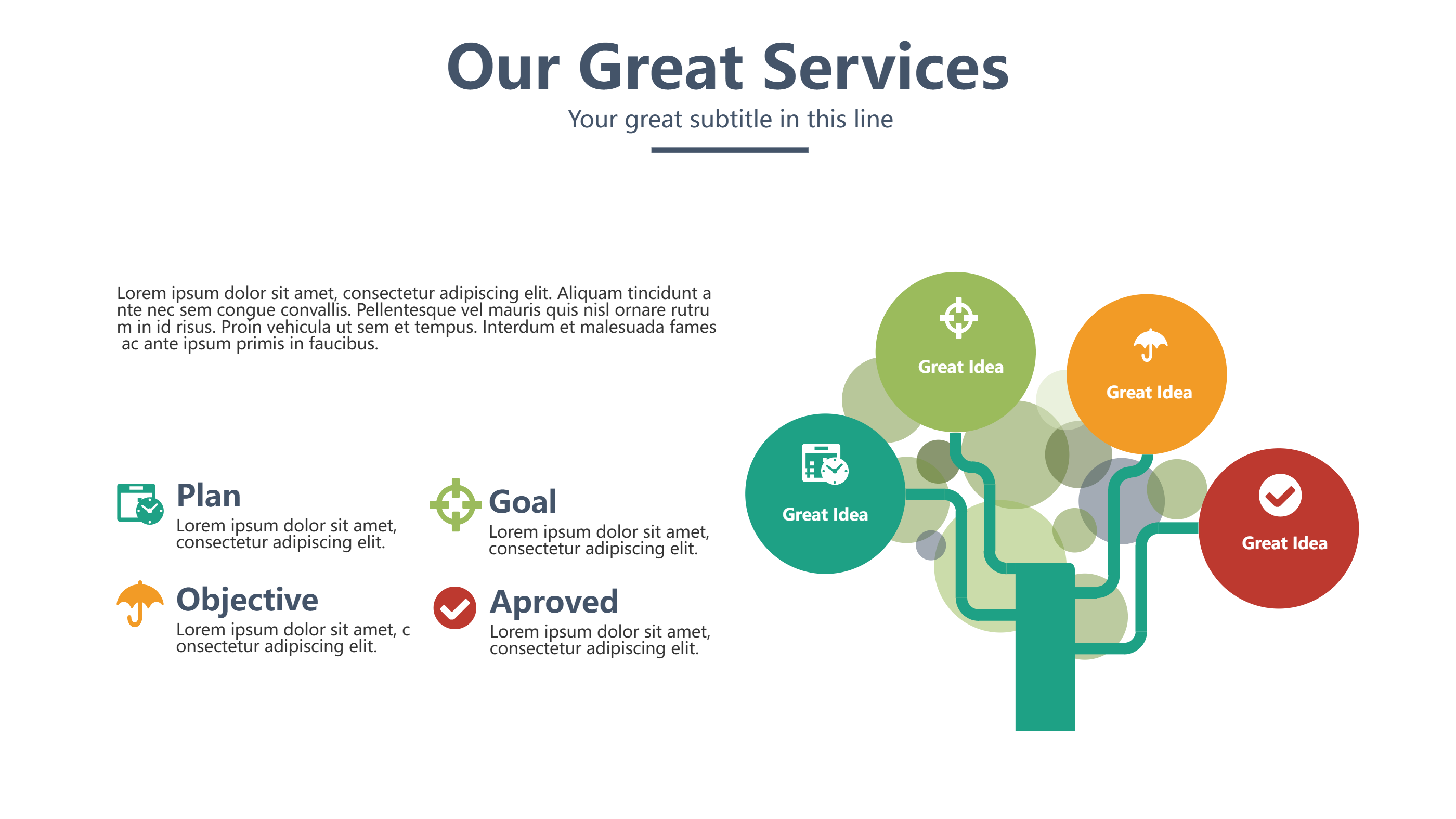
A tree infographic is a visual layout that shows a main idea with branches for related points. It turns a tree template into a clear story in one view. Short labels on each branch keep the message easy to read. Icons or small shapes can show how ideas grow from the core. The layout works well for slides, web pages, or a quick handout. It helps the reader see the big idea and its parts at the same time. The trunk can hold the topic and the branches can hold details. This keeps the topic light and friendly.
This template style keeps a calm balance between text and space. It helps the reader focus on key points without feeling lost. You can place the main idea in the center and add leaves around it. The design supports growth stories, skill maps, or topic groups. It is easy to adjust the number of branches as the idea grows. The layout stays clear even with short notes in each leaf.
When to Use Idea Growth Tree Infographic
Use an idea growth tree infographic when you need to show parts of a topic that connect to one core. It is helpful for lessons, planning, or a short overview. The tree shape feels natural and makes the flow easy to follow. It works well for learning paths, value themes, or team ideas. This layout fits a quick report or a simple slide deck. It keeps each point close to the main idea so the reader does not get lost. It also works when you want a soft and friendly visual tone.
Download and Edit the Template
Click the download button and an online editor opens in a new tab. You can change the text, colors, icons, and blocks to match your content. Add or remove items to fit your story. When the layout looks right, click the save button. Choose PPT, PNG, or SVG when you download the file. You can keep a slide copy or share a clean image with your team.
How to Use Tree Template
On the home page, open the AI generator and select the Tree Template template. Write a short prompt that explains the labels and the order you need. The tool builds the infographic in the same layout style. Edit any block to match your content and save the result.
Examples of Tree AI Prompt Usage
Example 1:
A tree infographic that shows a main idea in the trunk and three branches for key themes. Use leaves for short labels and small icons for each theme. Keep colors soft and the text brief.
Example 2:
A growth tree layout that explains how a small business grows from seed to stable shop. Show roots for values, trunk for the core offer, and branches for services. Keep each label short and friendly.
Recommended Similar Infographic Templates
Related Template 1: Market Growth
Related Template 2: Retro Pet Growth Guide: Tamagotchi Gen 1 and Digimon World 1 Evolution Chart
Related Template 3: PowerPoint Concept Map Hexagon Infographic Template
Related Template 4: Concept Map Focus Areas Infographic Template
FAQs
Q: Can I change the number of branches?
A: Yes. You can add or remove branches to fit your story.
Q: Is the tree template only for business topics?
A: No. It works for learning, skills, or family stories.
Q: Can I place a logo at the top?
A: Yes. You can add a small logo or title at the top.
Q: Do I need to fill every leaf?
A: No. Use only the leaves you need.
Q: Can I export the tree infographic as SVG?
A: Yes. SVG is available in the download options.